Chapter 43 — Quick Data Apps and Dashboards: From Script to Someone Else’s Screen
Series I5 — First Applications: Web, Maps, and Dashboards
All scripts for this chapter are in the kode/ch43/ folder. On the web version, you can also download them all at once (zip).
Chapter 42 ended with a static dashboard: nice, but frozen. This time we build a live dashboard: the user picks a sector, the numbers change, the map shifts. Luckily Python has libraries that make this possible without learning JavaScript. Picture a shop: before, you stuck a price list on the wall (the static dashboard); now you have a cashier who answers customers’ questions one by one.
We use the same sample business-unit data as the previous chapters (15 units, five sectors, all numbers fictional). All libraries below are installed on the author’s computer and were tested by running them; library versions keep changing, so if behaviour differs on your computer, check the latest official documentation.
One honest limitation: this chapter cannot show how things look in a browser. Everything run here is tested through code (without opening a browser), so what is proven is the logic and the content, not the looks.
Streamlit: a dashboard from one script
Streamlit turns an ordinary Python script into a web page. The idea is simple: the script is read from top to bottom, and every time the user changes something (picks, slides), the whole script is run again. No HTML, no JavaScript.
app_streamlit.py
# Chapter 43 - Streamlit dashboard per sector (helper module; run with: streamlit run app_streamlit.py)
import pandas as pd
import streamlit as st

from map_view import build_map
from unit_data import read_units

SECTORS = ["all", "forest", "plantation", "paddy", "pond", "barn"]


@st.cache_data                      # the result is kept; the CSV is not re-read on every interaction
def load_units():
    return pd.DataFrame(read_units())


st.set_page_config(page_title="Business unit dashboard", layout="wide")
st.title("Business unit dashboard (fictional data)")

sector = st.sidebar.selectbox("Sector", SECTORS)
units = load_units()
shown = units if sector == "all" else units[units["sector"] == sector]

left, middle, right = st.columns(3)
left.metric("Number of units", len(shown))
middle.metric("Mean value", f"{shown['value'].mean():.1f}")
right.metric("Highest value", f"{shown['value'].max():.1f}")

if sector == "all":
    st.info("Each sector has a different unit of measure (cm or kg): pick one sector to compare.")
else:
    st.bar_chart(shown.set_index("unit")["value"])

st.dataframe(shown[["id", "sector", "unit", "kind", "value", "uom"]], hide_index=True)
st.map(shown, latitude="lat", longitude="lon")

with st.expander("Interactive map (folium)"):
    st.iframe(build_map(shown.to_dict("records")).get_root().render(), height=420)
Read it like a recipe:
st.sidebar.selectbox(...)makes a selection box in the sidebar and returns the current choice.st.columns(3)and.metric(...)make three number cards.st.bar_chart,st.dataframe, andst.mapmake a chart, a table, and a point map.st.mapis given the names of the latitude and longitude columns (latandlon).@st.cache_datakeeps the result ofload_units()so the CSV is not re-read on every interaction.- The last part embeds a folium map in a collapsible section (covered in the map part).
The app is started with streamlit run app_streamlit.py, which opens an address on your computer. That command is not run when the book is built, because it starts a server that waits for a browser. Instead, Streamlit provides AppTest (official documentation: testing without a browser): it runs the script in memory and gives access to its elements.
01_streamlit_apptest.py
# Chapter 43 - Streamlit: running the dashboard WITHOUT a browser using AppTest
import logging

from streamlit.testing.v1 import AppTest

# "bare mode": AppTest has no browser, so Streamlit grumbles quietly; silence that warning
logging.getLogger("streamlit.runtime.scriptrunner_utils.script_run_context").setLevel(logging.ERROR)

at = AppTest.from_file("app_streamlit.py", default_timeout=30).run()

print("has an error    :", bool(at.exception))
print("title           :", at.title[0].value)
print("sector choices  :", at.selectbox[0].options)
print("chosen sector   :", at.selectbox[0].value)
for m in at.metric:
    print(f"metric          : {m.label} = {m.value}")
print("table rows      :", len(at.dataframe[0].value))
print("info box        :", at.info[0].value[:40] + "...")
has an error : False
title : Business unit dashboard (fictional data)
sector choices : ['all', 'forest', 'plantation', 'paddy', 'pond', 'barn']
chosen sector : all
metric : Number of units = 15
metric : Mean value = 375.0
metric : Highest value = 1250.0
table rows : 15
info box : Each sector has a different unit of meas...At the start, the chosen sector is all, and the numbers are right: 15 units, a mean value of 375.0 (this number mixes cm and kg, which is why the app shows an info box warning about it), and a highest value of 1250.0 (paddy field 1). Now we imitate a user:
02_streamlit_interaction.py
# Chapter 43 - Streamlit: imitating a user choosing a sector, then checking the result
import logging

from streamlit.testing.v1 import AppTest

logging.getLogger("streamlit.runtime.scriptrunner_utils.script_run_context").setLevel(logging.ERROR)

at = AppTest.from_file("app_streamlit.py", default_timeout=30).run()

for sector in ["forest", "pond", "barn"]:
    at.selectbox[0].select(sector).run()           # like a user clicking a choice in the sidebar
    values = {m.label: m.value for m in at.metric}
    chart = len(at.get("vega_lite_chart"))         # st.bar_chart = a Vega-Lite chart element
    the_map = len(at.get("deck_gl_json_chart"))    # st.map = a deck.gl map element
    print(f"{sector:10} units={values['Number of units']} mean={values['Mean value']} "
          f"highest={values['Highest value']} chart={chart} map={the_map} rows={len(at.dataframe[0].value)}")

# Choosing something that is not in the list fails when the app is re-run
try:
    at.selectbox[0].select("lake").run()
except ValueError as e:
    print("invalid choice rejected:", type(e).__name__)
forest units=3 mean=35.2 highest=45.2 chart=1 map=1 rows=3
pond units=3 mean=369.3 highest=432.4 chart=1 map=1 rows=3
barn units=3 mean=383.8 highest=412.5 chart=1 map=1 rows=3
invalid choice rejected: ValueErrorat.selectbox[0].select("pond").run() is “the user picks pond, the script runs again”. The result matches a hand calculation: pond has 3 units, a mean of (432.4 + 380.0 + 295.5) / 3 = 369.3, and a highest value of 432.4. A bar chart and a map each appear as one element. Choosing something that is not in the list (lake) is answered by a ValueError when the app is re-run.
AppTest proves that the app’s logic is right and that no exception occurs. It does not prove that the chart looks nice. Charts and maps only show up as elements of certain types (vega_lite_chart, deck_gl_json_chart); the shape on screen still has to be looked at by a human.
Gradio: a demo of a function or model
Gradio has a slightly different purpose from Streamlit: wrapping a function with automatic input and output boxes. It is much loved for showing off a model: the user types something, the model answers. Here our “model” is deliberately simple: a formula estimating a fish’s weight from its length, a fictional example, not research.
app_gradio.py
# Chapter 43 - Gradio demo: find units and a "model" that estimates fish weight (helper module)
import gradio as gr

from unit_data import read_units

SECTORS = ["all", "forest", "plantation", "paddy", "pond", "barn"]


def find_units(sector, minimum_value):
    """Returns a table of units and a summary sentence."""
    chosen = [
        [u["id"], u["sector"], u["unit"], u["value"], u["uom"]]
        for u in read_units()
        if sector in ("all", u["sector"]) and u["value"] >= minimum_value
    ]
    return chosen, f"{len(chosen)} matching units"


def estimate_weight(length_cm):
    """Stand-in for a 'model': weight = 0.01 x length^3 (a FICTIONAL example formula, not research)."""
    return round(0.01 * length_cm ** 3, 1)


find_interface = gr.Interface(
    fn=find_units,
    inputs=[gr.Dropdown(SECTORS, value="all", label="Sector"),
            gr.Slider(0, 1000, value=0, step=10, label="Minimum value")],
    outputs=[gr.Dataframe(headers=["id", "sector", "unit", "value", "uom"], label="Units"),
             gr.Textbox(label="Summary")],
    api_name="find",
    flagging_mode="never",
)
estimate_interface = gr.Interface(
    fn=estimate_weight,
    inputs=gr.Number(value=25, label="Fish length (cm)"),
    outputs=gr.Number(label="Estimated weight (g)"),
    api_name="estimate",
    flagging_mode="never",
)
demo = gr.TabbedInterface([find_interface, estimate_interface], ["Find units", "Estimate weight"],
                          title="Business unit demo (fictional data)")

if __name__ == "__main__":
    demo.launch()          # local address only; share=True is NOT used
Two functions, two gr.Interface objects, combined into tabs. api_name names each access point so other programs can call it. There are two ways to test:
03_gradio_function.py
# Chapter 43 - Gradio: test the functions directly, then start the app on your own computer
import contextlib
import io
import os

os.environ["GRADIO_ANALYTICS_ENABLED"] = "False"      # do not send usage statistics
os.environ["HF_HUB_OFFLINE"] = "1"                    # do not contact huggingface.co

from gradio_client import Client

from app_gradio import demo, estimate_weight, find_units

# 1. Ordinary functions: no server is needed to test them
table, summary = find_units("pond", 300)
print("direct      :", summary, "->", [row[2] for row in table])
print("direct      :", estimate_weight(25), "g for a 25 cm fish")

# 2. Start a local server, then call it through the official client (like a user over the network)
demo.launch(server_name="127.0.0.1", prevent_thread_lock=True, share=False, quiet=True)
try:
    client = Client(demo.local_url, verbose=False)
    data, text = client.predict("barn", 0, api_name="/find")
    print("client find :", text, "->", [r[2] for r in data["data"]])
    print("client est. :", client.predict(30, api_name="/estimate"), "g for a 30 cm fish")
finally:
    with contextlib.redirect_stdout(io.StringIO()):   # hides the port-number message
        demo.close()
print("server closed")
direct : 2 matching units -> ['Pond A', 'Pond B']
direct : 156.2 g for a 25 cm fish
client find : 3 matching units -> ['Pen 1', 'Pen 2', 'Pen 3']
client est. : 270.0 g for a 30 cm fish
server closed- Call the function directly: 2 pond units with value ≥ 300 (Pond A and B), and 0.01 × 25³ = 156.25, which Python rounds to 156.2 g.
- Start a local server and call it through
gradio_client, the official client: like a remote user. 3 barn units match, and for a 30 cm fish: 0.01 × 30³ = 270.0 g.
Three notes on safety and privacy:
- We do not use
share=True. According to the Gradio documentation, that option creates a temporary public link (valid for about a week) that forwards traffic to your computer; anyone with the link can use the app, while your computer does the work. Do not do that with data that is not meant for the public. - While testing, we monitored network connections and found that Gradio contacts
huggingface.counless prevented. We did not investigate its purpose. WithHF_HUB_OFFLINE=1(andGRADIO_ANALYTICS_ENABLED=Falsefor usage statistics), no connection leaving this computer was detected any more. If you use Gradio for sensitive data, check these settings. demo.launch()without arguments only serves your own computer.
Dash: a dashboard you control completely
Dash (from Plotly) works more “from the bottom”: you assemble a layout (the page skeleton made of components) and callbacks (functions called when a component changes). More code than Streamlit, but finer control.
app_dash.py
# Chapter 43 - Dash dashboard (helper module; run with: python app_dash.py)
import pandas as pd
import plotly.express as px
from dash import Dash, Input, Output, dcc, html

from unit_data import read_units

SECTORS = ["forest", "plantation", "paddy", "pond", "barn"]
units = pd.DataFrame(read_units())

app = Dash(__name__)
app.layout = html.Div([
    html.H1("Dash dashboard (fictional data)"),
    dcc.Dropdown(id="sector", options=SECTORS, value="pond", clearable=False),
    html.Div(id="summary"),
    dcc.Graph(id="chart"),
])


@app.callback(Output("chart", "figure"), Output("summary", "children"), Input("sector", "value"))
def update(sector):
    part = units[units["sector"] == sector]
    figure = px.bar(part, x="unit", y="value", title=f"Sector {sector}")
    return figure, f"{len(part)} units, mean {part['value'].mean():.1f} {part['uom'].iloc[0]}"


if __name__ == "__main__":
    app.run(debug=False)       # http://127.0.0.1:8050
The @app.callback decorator says: “when the value of sector changes, call this function and put the results in chart.figure and summary.children.” Dash stands on Flask, so we can use the Flask test client without a browser:
04_dash_layout.py
# Chapter 43 - Dash: testing the dashboard through Flask's test client, without a browser
from app_dash import app, update

client = app.server.test_client()          # Dash is built on top of Flask

page = client.get("/")
print("home page :", page.status_code, "| loads the Dash renderer:", b"_dash-renderer" in page.data)

layout = client.get("/_dash-layout").get_json()
children = layout["props"]["children"]
print("layout    :", [(c["type"], c["props"].get("id")) for c in children])

# Imitate the request the browser sends when the user changes the sector
body = {
    "output": "..chart.figure...summary.children..",
    "outputs": [{"id": "chart", "property": "figure"}, {"id": "summary", "property": "children"}],
    "inputs": [{"id": "sector", "property": "value", "value": "paddy"}],
    "changedPropIds": ["sector.value"],
}
reply = client.post("/_dash-update-component", json=body)
print("callback  :", reply.status_code, reply.get_json()["response"]["summary"]["children"])

# The function can also be called directly, like any ordinary function
print("direct    :", update("barn")[1])
home page : 200 | loads the Dash renderer: True
layout : [('H1', None), ('Dropdown', 'sector'), ('Div', 'summary'), ('Graph', 'chart')]
callback : 200 2 units, mean 1115.2 kg
direct : 3 units, mean 383.8 kgThe home page answers 200 and loads the Dash renderer. The layout holds the H1 heading, the sector dropdown, the summary, and the chart. We then send the same request the browser sends when the user picks paddy: the answer is “2 units, mean 1115.2 kg”, matching (1250.0 + 980.5) / 2 = 1115.25 rounded to one decimal. The callback function can also be called directly.
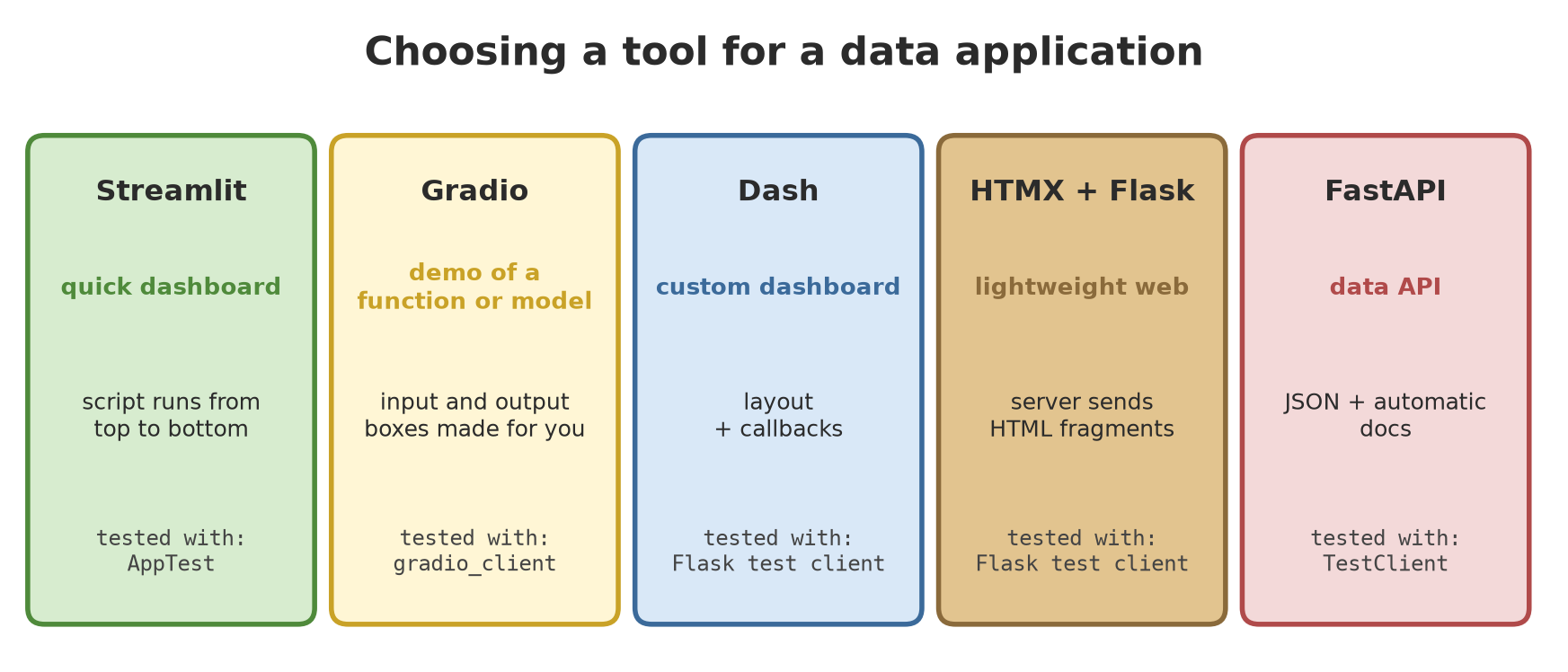
A rule of thumb: Streamlit for quick dashboards and prototypes; Gradio to show off one function or model; Dash when layout and interaction need detailed control. For a simple internal dashboard, start with Streamlit.
Interactive maps in a dashboard
In Chapters 38 to 40 you made maps. For maps in a dashboard, folium wraps the JavaScript map library Leaflet; pydeck wraps deck.gl for point layers or big data. Both produce HTML.
map_view.py
# Chapter 43 - Helper module: an interactive map of the unit locations with folium (FICTIONAL coordinates)
import folium

COLORS = {"forest": "darkgreen", "plantation": "orange", "paddy": "green", "pond": "blue", "barn": "red"}


def build_map(units):
    """One marker per unit, coloured by sector, with details when clicked."""
    center = [sum(u["lat"] for u in units) / len(units), sum(u["lon"] for u in units) / len(units)]
    the_map = folium.Map(location=center, zoom_start=13, tiles="OpenStreetMap")
    for u in units:
        folium.Marker(
            [u["lat"], u["lon"]],
            tooltip=f'{u["unit"]} ({u["sector"]})',
            popup=f'{u["unit"]}: {u["value"]} {u["uom"]}',
            icon=folium.Icon(color=COLORS[u["sector"]]),
        ).add_to(the_map)
    return the_map
05_interactive_map.py
# Chapter 43 - Interactive maps: folium (Leaflet) and pydeck (deck.gl), saved as HTML files
from pathlib import Path

import pydeck as pdk

from map_view import build_map
from unit_data import read_units

units = read_units()
out = Path(__file__).parent / "_tmp"
out.mkdir(exist_ok=True)

# 1. folium: one marker per unit
the_map = build_map(units)
file = out / "folium_map.html"
the_map.save(file)
html = file.read_text(encoding="utf-8")
print("folium : markers =", html.count("L.marker("), "| mentions Leaflet:", "leaflet" in html.lower())
print("         HTML file created:", file.stat().st_size > 5000)

# 2. pydeck: a point layer sized by value (only fair for sectors that share a unit of measure)
ponds = [u for u in units if u["sector"] == "pond"]
layer = pdk.Layer("ScatterplotLayer", data=ponds, get_position=["lon", "lat"],
                  get_radius="value", radius_scale=0.5, get_fill_color=[30, 100, 200, 160])
view = pdk.ViewState(latitude=ponds[0]["lat"], longitude=ponds[0]["lon"], zoom=13)
deck = pdk.Deck(layers=[layer], initial_view_state=view)
file2 = out / "pydeck_map.html"
deck.to_html(str(file2), open_browser=False)
print("pydeck : pond points =", len(ponds), "| HTML file created:", file2.stat().st_size > 1000)

# Both files load their map library from the internet when OPENED in a browser (not when made here)
print("libraries loaded from a CDN:", "https://" in html and "https://" in file2.read_text(encoding="utf-8"))
folium : markers = 15 | mentions Leaflet: True
HTML file created: True
pydeck : pond points = 3 | HTML file created: True
libraries loaded from a CDN: TrueThere are 15 markers (one per unit) on the folium map, and 3 pond points on the pydeck map. Notice the last line: both files load their map libraries from the internet when opened in a browser, not when made. So these maps need an internet connection to be viewed; we did not open them here. Streamlit embeds the folium map with st.iframe(...). (The older function st.components.v1.html is marked deprecated in Streamlit 1.65, with st.iframe as its replacement.) The Streamlit documentation also warns: do not embed HTML from untrusted sources this way; our map is made by ourselves from our own data.
The point size on the pydeck map uses the value column. That is fair only for sectors with the same unit of measure. We chose the pond sector (all in kg). Drawing forest (cm) next to pond (kg) on one scale would mislead.
HTMX: lightweight web without a big framework
Sometimes all you need is a page where part of the content changes without reloading the whole page. HTMX is a small JavaScript library that gives HTML that ability through attributes: hx-get (ask this address), hx-trigger (when), hx-target (fill which part), hx-swap (how to replace). The server, Flask here, only has to send an HTML fragment, not JSON.
app_htmx.py
# Chapter 43 - Lightweight web with HTMX + Flask (helper module; run with: flask --app app_htmx run)
from flask import Flask, abort, render_template_string, request

from unit_data import read_units

app = Flask(__name__)
SECTORS = ["forest", "plantation", "paddy", "pond", "barn"]

PAGE = """<!doctype html>
<html lang="en">
<head>
  <meta charset="utf-8"><title>Business units (HTMX)</title>
  <script src="https://cdn.jsdelivr.net/npm/htmx.org@2.0.11/dist/htmx.min.js"></script>
</head>
<body>
  <h1>Business units (fictional data)</h1>
  <select name="s" hx-get="/sector" hx-trigger="change" hx-target="#result" hx-swap="innerHTML">
    <option value="">- choose a sector -</option>
    {% for s in sectors %}<option value="{{ s }}">{{ s }}</option>{% endfor %}
  </select>
  <div id="result">Choose a sector above.</div>
</body>
</html>"""

TABLE = """<table>
  {% for u in units %}<tr><td>{{ u.unit }}</td><td>{{ u.kind }}</td><td>{{ u.value }} {{ u.uom }}</td></tr>
  {% endfor %}
</table>"""


@app.get("/")
def index():
    return render_template_string(PAGE, sectors=SECTORS)


@app.get("/sector")
def per_sector():
    s = request.args.get("s", "")
    if s not in SECTORS:
        abort(400, "unknown sector")
    units = [u for u in read_units() if u["sector"] == s]
    return render_template_string(TABLE, units=units)      # only an HTML fragment, not a whole page
Choosing a sector sends GET /sector?s=pond, and the server answers a small table that is put into #result. The HTMX script is loaded from the jsDelivr CDN; version 2.0.11 is the latest version in the npm registry at the time of writing (read on 2026-10-10). In a real deployment you can add the integrity attribute (Subresource Integrity) as in the HTMX documentation’s example; we did not copy that hash from memory.
06_htmx_flask.py
# Chapter 43 - HTMX + Flask: the server side tested with the test client (htmx JavaScript is NOT run here)
from app_htmx import app

client = app.test_client()

page = client.get("/").get_data(as_text=True)
print("home page:", len(page.splitlines()), "lines")
for attribute in ("hx-get=", "hx-trigger=", "hx-target=", "htmx.org@2.0.11"):
    print(f"  contains {attribute:18}", attribute in page)

# What htmx sends when the user chooses: GET /sector?s=pond with the HX-Request header
reply = client.get("/sector?s=pond", headers={"HX-Request": "true"})
fragment = reply.get_data(as_text=True)
print("\nGET /sector?s=pond ->", reply.status_code, "| HTML fragment, not a full page:", "<html" not in fragment)
print(fragment)

print("odd sector ->", client.get("/sector?s=lake").status_code)
print("no sector  ->", client.get("/sector").status_code)
home page: 15 lines
contains hx-get= True
contains hx-trigger= True
contains hx-target= True
contains htmx.org@2.0.11 True
GET /sector?s=pond -> 200 | HTML fragment, not a full page: True
<table>
<tr><td>Pond A</td><td>tilapia</td><td>432.4 kg</td></tr>
<tr><td>Pond B</td><td>catfish</td><td>380.0 kg</td></tr>
<tr><td>Pond C</td><td>tilapia</td><td>295.5 kg</td></tr>
</table>
odd sector -> 400
no sector -> 400What is proven: the page contains the HTMX attributes and the version 2.0.11 script; the /sector endpoint answers an HTML fragment (not a full page) holding the three ponds; an odd or missing sector is rejected with code 400. What is not tested: HTMX’s JavaScript in a browser, that is, that choosing a sector really replaces the content of #result. That needs a browser and we did not open one.
FastAPI: a door for other programs
A dashboard is a door for people. An API is a door for other programs: a phone app, another script, or a dashboard elsewhere asking for data as JSON. In Chapter 36 you met FastAPI; now we use it for the data of all business units, with the Pydantic models of Chapter 34.
api_unit.py
# Chapter 43 - FastAPI API for the data of all business units (helper module)
from typing import Literal

from fastapi import FastAPI, HTTPException
from pydantic import BaseModel

from unit_data import read_units, summarize_by_sector

Sector = Literal["forest", "plantation", "paddy", "pond", "barn"]


class Unit(BaseModel):
    id: str
    sector: Sector
    unit: str
    kind: str
    lat: float
    lon: float
    value: float
    uom: str


class Summary(BaseModel):
    sector: Sector
    count: int
    total: float
    mean: float
    uom: str


app = FastAPI(title="Business unit API (fictional data)")


@app.get("/unit", response_model=list[Unit])
def list_units(sector: Sector | None = None):
    return [u for u in read_units() if sector is None or u["sector"] == sector]


@app.get("/unit/{unit_id}", response_model=Unit)
def one_unit(unit_id: str):
    for u in read_units():
        if u["id"] == unit_id:
            return u
    raise HTTPException(status_code=404, detail=f"unit {unit_id} does not exist")


@app.get("/summary", response_model=list[Summary])
def summary():
    return [{"sector": s, **r} for s, r in summarize_by_sector(read_units()).items()]
07_fastapi_api.py
# Chapter 43 - FastAPI: an API for the data of all business units, tested with TestClient
from fastapi.testclient import TestClient

from api_unit import app

client = TestClient(app)

everything = client.get("/unit").json()
print("GET /unit              :", len(everything), "units; first =", everything[0]["id"], everything[0]["unit"])

ponds = client.get("/unit", params={"sector": "pond"}).json()
print("GET /unit?sector=pond  :", [u["unit"] for u in ponds])

one = client.get("/unit/D2")
print("GET /unit/D2           :", one.status_code, one.json()["value"], one.json()["uom"])

missing = client.get("/unit/X9")
print("GET /unit/X9           :", missing.status_code, missing.json())

wrong = client.get("/unit", params={"sector": "lake"})
print("GET /unit?sector=lake  :", wrong.status_code, wrong.json()["detail"][0]["type"])

print("GET /summary           :", [(r["sector"], r["count"], round(r["mean"], 1)) for r in client.get("/summary").json()])
print("automatic docs         :", client.get("/docs").status_code, "| schema:", client.get("/openapi.json").status_code)
GET /unit : 15 units; first = H1 Plot A
GET /unit?sector=pond : ['Pond A', 'Pond B', 'Pond C']
GET /unit/D2 : 200 412.5 kg
GET /unit/X9 : 404 {'detail': 'unit X9 does not exist'}
GET /unit?sector=lake : 422 literal_error
GET /summary : [('forest', 3, 35.2), ('plantation', 4, 257.5), ('paddy', 2, 1115.2), ('pond', 3, 369.3), ('barn', 3, 383.8)]
automatic docs : 200 | schema: 200TestClient calls the API without starting a server. The result shows: 15 units; three ponds when filtered; D2 found (412.5 kg); X9 gives 404 with a clear message; the sector lake gives 422, an automatic validation error because it is not one of the Literal values; and FastAPI builds interactive documentation (/docs) and a schema (/openapi.json) without you writing them.
Serving an application to users
So far everything has run on 127.0.0.1, an address that this computer only can reach. For other people to use it, the application must run on a machine they can reach. Let us look at the first real server, uvicorn, which runs our API over genuine HTTP:
08_local_serving.py
# Chapter 43 - Serving an application: a real server (uvicorn) on your own computer + serving files
import socket
import threading
import time
from pathlib import Path

import httpx
import uvicorn

from api_unit import app

# Find a free port, then start the server in a separate thread
with socket.socket() as s:
    s.bind(("127.0.0.1", 0))
    port = s.getsockname()[1]

server = uvicorn.Server(uvicorn.Config(app, host="127.0.0.1", port=port, log_level="warning"))
thread = threading.Thread(target=server.run, daemon=True)
thread.start()
while not server.started:
    time.sleep(0.05)

try:
    reply = httpx.get(f"http://127.0.0.1:{port}/summary", timeout=5)
    print("over real HTTP:", reply.status_code, "|", len(reply.json()), "sectors")
finally:
    server.should_exit = True          # ask the server to stop cleanly
    thread.join(timeout=10)
print("server has stopped:", not thread.is_alive())

# Files that usually travel with an application when it moves to another server
out = Path(__file__).parent / "_tmp" / "serving"
out.mkdir(parents=True, exist_ok=True)
(out / "requirements.txt").write_text("fastapi\nuvicorn\nstreamlit\npandas\nfolium\n", encoding="utf-8")
commands = {
    "API (FastAPI)": "uvicorn api_unit:app --host 127.0.0.1 --port 8000",
    "Dashboard (Streamlit)": "streamlit run app_streamlit.py",
    "Demo (Gradio)": "python app_gradio.py",
    "Dashboard (Dash)": "python app_dash.py",
    "Light web (Flask)": "flask --app app_htmx run",
}
print("\nCommands that start each app (run them YOURSELF in a terminal, not here):")
for name, c in commands.items():
    print(f"  {name:22} {c}")
over real HTTP: 200 | 5 sectors
server has stopped: True
Commands that start each app (run them YOURSELF in a terminal, not here):
API (FastAPI) uvicorn api_unit:app --host 127.0.0.1 --port 8000
Dashboard (Streamlit) streamlit run app_streamlit.py
Demo (Gradio) python app_gradio.py
Dashboard (Dash) python app_dash.py
Light web (Flask) flask --app app_htmx runThe server is started on a free port, answers 200 with 5 sectors, then is stopped cleanly. The list below is the start command for each app in this chapter, which you run yourself in a terminal; nothing there is run here.
How do you move it so other people can use it? Here are the options named by each official documentation. We did not sign up, upload, or try any of them; terms, prices, and limits may change, so read the official page before deciding.
| Application | Options according to the documentation |
|---|---|
| Streamlit | Streamlit Community Cloud (described as free hosting for non-commercial, personal, and educational apps), Snowflake, or other platforms through tutorials |
| Gradio | share=True (a temporary link from your computer), Hugging Face Spaces (a permanent link), or mounted on your own FastAPI app with gr.mount_gradio_app() |
| Dash | Plotly Cloud (managed) or Dash Enterprise (for organizations) |
| FastAPI, Flask | your own or rented server, running uvicorn as above |
A note from the Hugging Face documentation worth reading carefully: at the time of writing, Spaces of type Gradio or Docker need a paid plan to create, while static Spaces are free, and a Space on free hardware “goes to sleep” when unused for a while. The documentation also advises keeping secrets (keys, tokens) as a settings secret, not writing them in code.
Before serving anything to the public, ask yourself: (1) may everyone see this data? A dashboard without a password is open to anyone who has the address; (2) are there secrets in the code? Keys and passwords must not be in code or a repository; (3) who maintains it when it breaks? The chapters of Series A1 cover security and deployment seriously.
Running Project I5 (closing): one dataset, many doors
The Series I5 project is now complete: the business-unit data is read by one module, then opened through many doors.
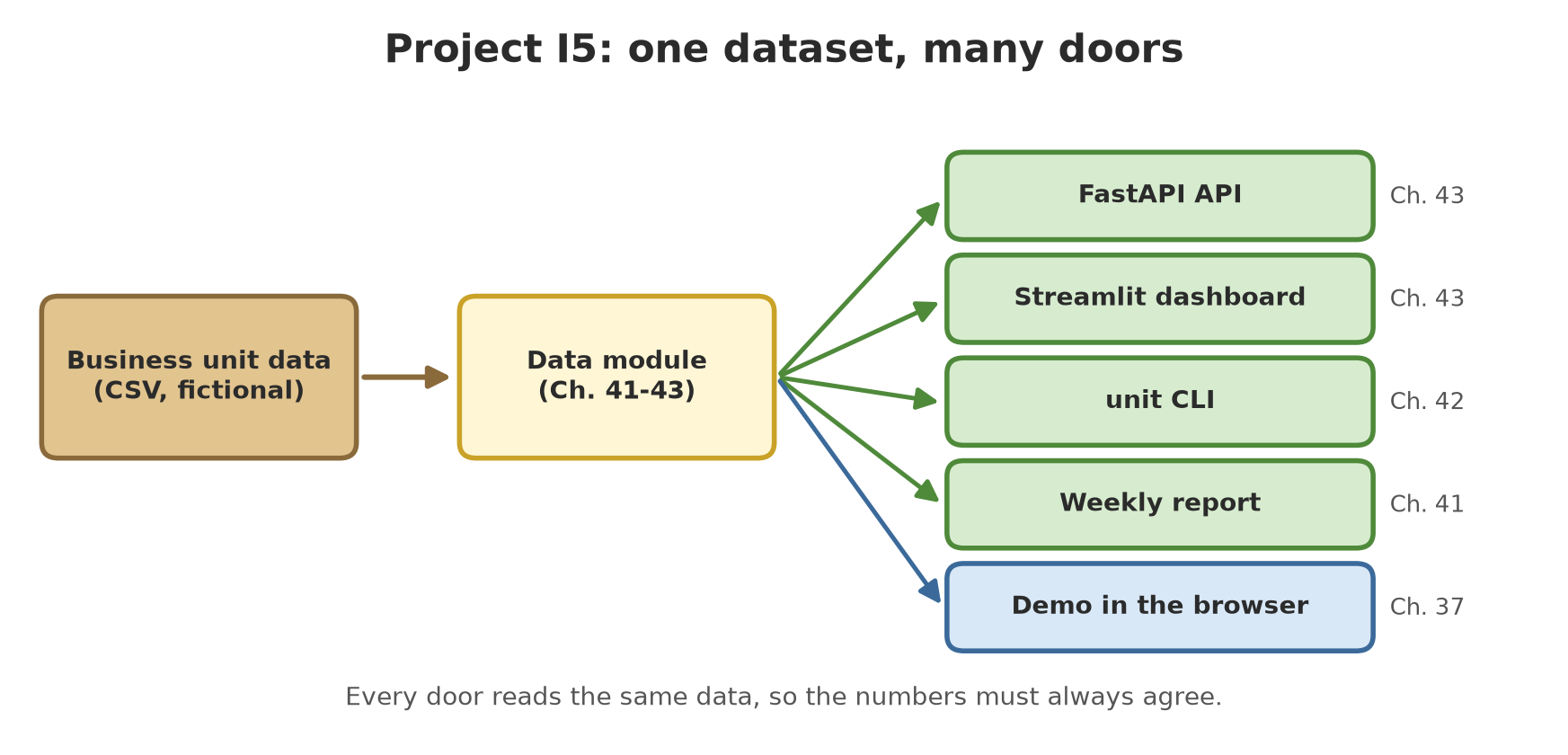
- FastAPI API (this chapter) for other programs.
- Streamlit dashboard per sector (this chapter) for people.
- The
unitCLI (Chapter 42) for the terminal and automation. - The weekly report with polite scraping (Chapter 41).
- The demo in the browser without a server (Chapter 37), and maps (Chapters 38 to 40).
Because all the doors read the same data, the numbers must agree. The closing script checks that: the mean per sector is calculated directly from the module, through the API, and through the dashboard, then compared.
09_project_closing.py
# Chapter 43 - Running project I5 (closing): one dataset, three ways in, the results must agree
import logging

from fastapi.testclient import TestClient
from streamlit.testing.v1 import AppTest

from api_unit import app
from unit_data import read_units, summarize_by_sector

logging.getLogger("streamlit.runtime.scriptrunner_utils.script_run_context").setLevel(logging.ERROR)

direct = summarize_by_sector(read_units())                                   # way 1: the data module
via_api = {r["sector"]: r for r in TestClient(app).get("/summary").json()}   # way 2: the API

dashboard = AppTest.from_file("app_streamlit.py", default_timeout=30).run()
print(f"{'sector':10} {'units':>5} {'mean (module)':>14} {'API':>8} {'dashboard':>10}  match")
all_match = True
for sector, r in direct.items():
    dashboard.selectbox[0].select(sector).run()                              # way 3: the Streamlit dashboard
    metrics = {m.label: m.value for m in dashboard.metric}
    match = (f"{r['mean']:.1f}" == f"{via_api[sector]['mean']:.1f}" == metrics["Mean value"]
             and str(r["count"]) == metrics["Number of units"])
    all_match &= match
    print(f"{sector:10} {r['count']:>5} {r['mean']:>14.1f} {via_api[sector]['mean']:>8.1f} "
          f"{metrics['Mean value']:>10}  {'yes' if match else 'NO'}")

print("\nall ways agree:", all_match)
sector units mean (module) API dashboard match
forest 3 35.2 35.2 35.2 yes
plantation 4 257.5 257.5 257.5 yes
paddy 2 1115.2 1115.2 1115.2 yes
pond 3 369.3 369.3 369.3 yes
barn 3 383.8 383.8 383.8 yes
all ways agree: TrueAll five sectors match across the three ways (the last column says “yes”, and all ways agree: True). A check like this is cheap and a lifesaver: if one day a path starts calculating differently, you know before your users do.
Exercises
- In
app_streamlit.py, add anst.slider“Minimum value” that filters the table. Add a check in02_streamlit_interaction.pythat moves the slider and reads the number of table rows. - In
api_unit.py, add an access pointGET /sectorthat returns the list of sector names, then test it withTestClient. - In
app_dash.py, add a second component (for exampledcc.RadioItemsto choose ascending or descending order) and its callback. Test it through the Flask test client. - Challenge: make
app_gradio.pyaccept a unit number (D1,L2, …) and return that unit by calling your FastAPI API throughTestClient(not over a network). Show a friendly error when the number does not exist.
Chapter Summary
- Streamlit: a script from top to bottom, re-run on every interaction; test with
AppTestwithout a browser. - Gradio: wraps a function/model with automatic boxes; test the function directly or through
gradio_client. Do not useshare=Truefor data that is not for the public. - Dash: layout + callbacks, built on Flask; test with the test client.
- folium and pydeck produce interactive HTML maps that load their libraries from the internet when opened.
- HTMX + Flask: the server sends HTML fragments; only the server side was tested here.
- FastAPI: a JSON API with validation and automatic docs; test with
TestClient. - Serving = running on a machine users can reach; consider data, secrets, and maintenance first.
Closing Series I5
Congratulations! You have finished Series I5, and that means the Intermediate level (Volume 2) is complete. From tidy, maintained code (Series I1), data and the internet (I2), statistics and modelling (I3), advanced Python language features (I4), to first applications (I5), you can now:
- write code that is tidy, tested, and under version control;
- fetch, clean, and analyse data, including basic statistics;
- use generators, decorators, type hints, Pydantic, and async;
- build web APIs, process spatial data, and show it on maps;
- automate repetitive tasks, build command-line tools, and present data through dashboards.
But your application still runs on your own computer. For it to be fast, safe, servable to many users, able to handle big data, and smart, you need to step into the Advanced level: professional software engineering, large-scale data, machine learning, up to AI.
Next, in Chapter 44: performance. We learn to measure and speed up code (profiling, the right data structures, vectorization, and caching).