Chapter 4 — Meet Python and Install It: Your First Program
Series B1 — Starting From Zero
All scripts for this chapter are in the kode/ch04/ folder. On the web version, you can also download them all at once (zip).
What is Python?
Python is a programming language: a language people use to write instructions for a computer (remember the warehouse worker from Chapter 1). Its name, reportedly, comes from the comedy group Monty Python, not from the snake.
Why is Python a good fit for you?
- Easy to read. It looks like simple English, so beginners understand quickly.
- Versatile. Used for data analysis, automating work, mapping (GIS), websites, artificial intelligence, and much more.
- Free and open. Anyone may install and use it.
- Big community. Almost every beginner problem has already been asked and answered by someone.
Installing Python 3.14 on Windows
This book uses Python 3.14. The official Python documentation recommends installing on Windows through the Python install manager; the old single-file installer has been marked deprecated since version 3.14.
The steps:
- Open python.org/downloads and download the Python install manager for Windows (or get it from the Microsoft Store).
- Run the downloaded file and follow the on-screen instructions.
- Open a terminal (Chapter 3), then type:
py install 3.14This asks the manager to install Python 3.14. If questions appear, read and follow them. Adding a folder to PATH is optional according to the documentation; the py command works without it.
If your computer once had Python installed the old way, there may be more than one program called py.exe: the old launcher and the new manager. On the author’s computer there are three. The old launcher does not know the manager’s commands: py list and py install --help are read as a file name and answered with a message like can't open file ... list. If that happens to you, use the unambiguous name pymanager: pymanager install 3.14 and pymanager list. According to the official documentation, pymanager exists precisely to avoid clashing with an old py.exe. To list every py.exe on your computer: where.exe py.
Installing on macOS and Linux works differently. The official instructions are at python.org/downloads. This book uses Windows as its example, but almost all example programs behave the same on other systems.
Checking the installation
The installation worked if this command shows a version number:
py --versionOn the author’s computer, the result is:
Python 3.14.8The last number (for example .8) may differ on your computer; what matters is that it starts with 3.14.
This book tests all examples with Python 3.14.8. All scripts in this book were also tried on Python 3.12.10: the results are the same, except that in Python 3.12 error messages show the full file path (not just the file name as in this book) and the pointer marks under the error line sometimes look different.
Anaconda is an alternative installation package that brings Python together with many data science libraries. Many data scientists use it. You do not need Anaconda to read Series B1 and B2. Its explanation and comparison are in Chapter 17.
Trying Python directly: interactive mode
Python has a “chat room” for trying one line of code and seeing the answer at once. It is called interactive mode (also known as the REPL). In the terminal, type:
pyA >>> sign appears, meaning Python is ready for code. Type 2 + 3 then Enter:
>>> 2 + 3
5
>>> print("Hello")
Hello
Python calculates 2 + 3 and answers 5 right away. To leave, type exit() then Enter.
Interactive mode is good for quick experiments. But anything typed there is not saved. For a program you can use again, we write it in a file.
Your first program
The steps are simple:
- Write the code in a text editor and save it as a
.pyfile. - Run that file through the terminal.
- Read the result (and fix it if there’s an error).
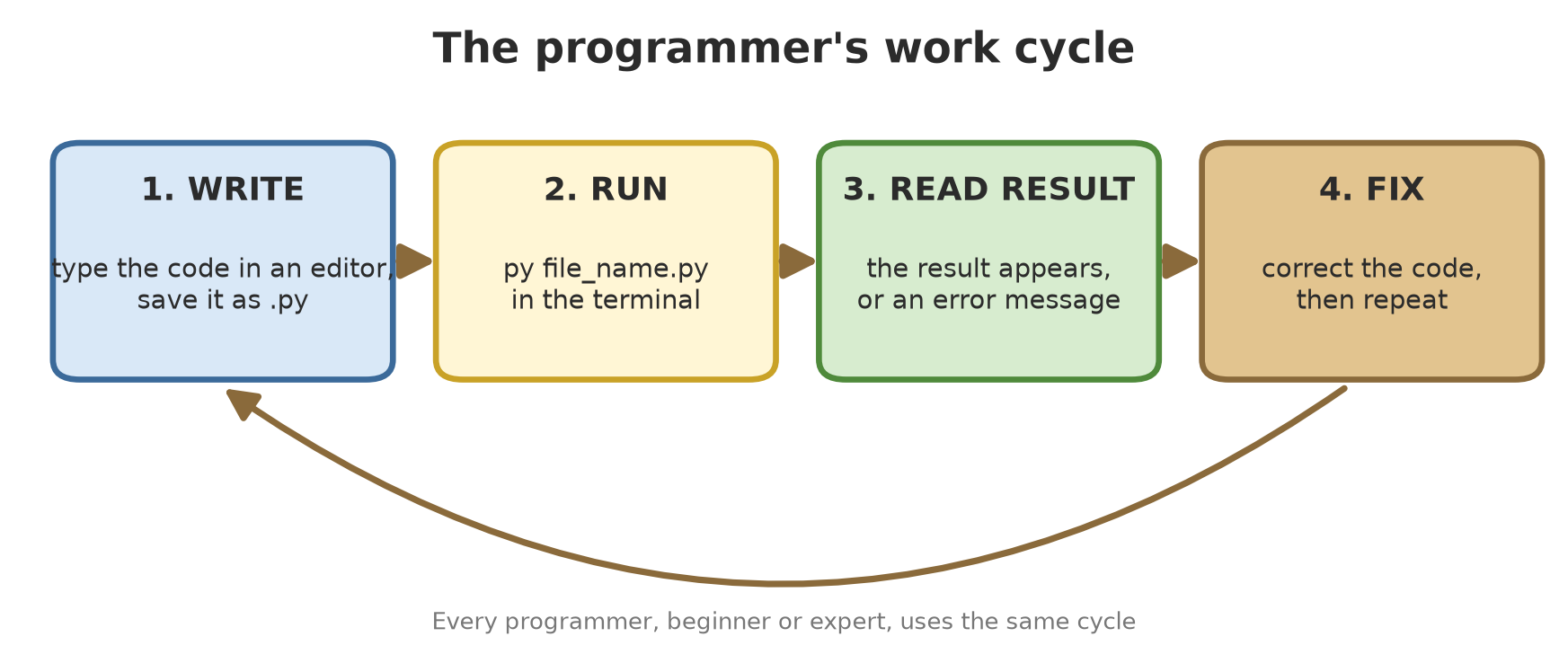
To type code, Notepad is enough. If you want more comfort (coloured code, automatic suggestions), many beginners use Visual Studio Code, a free editor.
When saving, make sure the file name ends in .py and not .txt. In Notepad, change “Save as type” to All files, then type the full name such as hello.py. If extensions in File Explorer are still hidden (Chapter 1), you may unknowingly create hello.py.txt.
Create a file named hello.py in the learn-python folder (from Chapter 3), with this content:
01_hello.py
# Chapter 4 - First program: say hello to the world
print("Hello, World!")
Run it from the terminal (make sure you are standing in the learn-python folder):
py hello.pyThe result:
Hello, World!Congratulations, you just ran your first program. Let’s take it apart:
print(...)is a command meaning “show this on the screen”.- The text you want to show is wrapped in quotation marks
"...". - Text inside the quotes appears exactly as written, without the quotes themselves.
Running Project B1: “Hello, Farm!”
Throughout this book we build one project: an Information System for Forestry, Plantations, Farming, Fisheries, and Livestock. Its first step is simple: a program that greets and shows the name and location of a business unit.
02_hello_farm.py
# Chapter 4 - Running project B1: "Hello, Farm!"
# A line that starts with # is a comment: Python ignores it.
print("Hello, Farm!")
print("Business unit: Sejahtera Teak Plantation")
print("Location: Bogor Regency, West Java")
Hello, Farm!
Business unit: Sejahtera Teak Plantation
Location: Bogor Regency, West JavaNotice the lines starting with #. That is a comment: a note for humans that Python ignores. Comments help you (and your colleagues) remember the purpose of code three months from now.
Python reads a program from top to bottom, one line at a time. The order of the lines decides the order of results on the screen.
When there’s an error: stay calm, it’s normal
Even experienced programmers see errors every day. An error is not a sign you failed; it is Python’s way of telling you what needs fixing. The two most common beginner traps:
Trap 1: mistyping a command name
03_typo.py
# Chapter 4 - A typo: print written as "prnt"
prnt("Hello, Farm!")
Traceback (most recent call last):
File "03_typo.py", line 2, in <module>
prnt("Hello, Farm!")
^^^^
NameError: name 'prnt' is not defined. Did you mean: 'print'?Read from the last line: NameError means Python doesn’t recognise the name prnt. And Python itself guesses what you meant: “Did you mean: ‘print’?” Fix the spelling, done.
Trap 2: a missing closing quotation mark
04_missing_quote.py
# Chapter 4 - The closing quotation mark is missing
print("Hello, Farm!)
File "04_missing_quote.py", line 2
print("Hello, Farm!)
^
SyntaxError: unterminated string literal (detected at line 2)SyntaxError means a writing rule was broken. This time Python points at text whose opening quote has no partner. Add the closing ", done.
Read error messages from the bottom up: the last line explains the kind of problem, the lines above point to where. Three months from now, this habit will save you hours of frustration.
Don’t name your file the same as a built-in Python command or library, for example print.py or random.py. Python may get confused about which one you mean. Use a clear name such as hello_farm.py.
Exercises
- Install Python 3.14, then run
py --version. Write down the version number that appears. - Write your own
hello.py, but change the content to your name and your city. Run it through the terminal. - Change
hello_farm.pyso it shows three different business units (for example a plantation, a pond, and a barn), each with its location. - Challenge: deliberately delete one bracket in one of the
printlines. Read the error message that appears from the last line. What does it say?
Chapter Summary
- Python = an easy-to-read, versatile, free programming language.
- This book uses Python 3.14; check it with
py --version. - Interactive mode (
py) for trying a single line;.pyfiles for programs that are saved. - Work cycle: write → run → read the result → fix.
print("...")shows text; lines starting with#are comments.- Python reads a program from top to bottom.
- Errors are hints, not punishments: read from the last line.
Next, in Chapter 5 (Series B2): your program can run, but it cannot remember anything yet. We learn variables and data types, so a program can store a tree’s name, a cow’s weight, and the number of fish.