Chapter 17 — Environments and Dependencies: One Python Room per Project
Series I1 — Tidy and Maintainable Code
All scripts for this chapter are in the kode/ch17/ folder. On the web version, you can also download them all at once (zip).
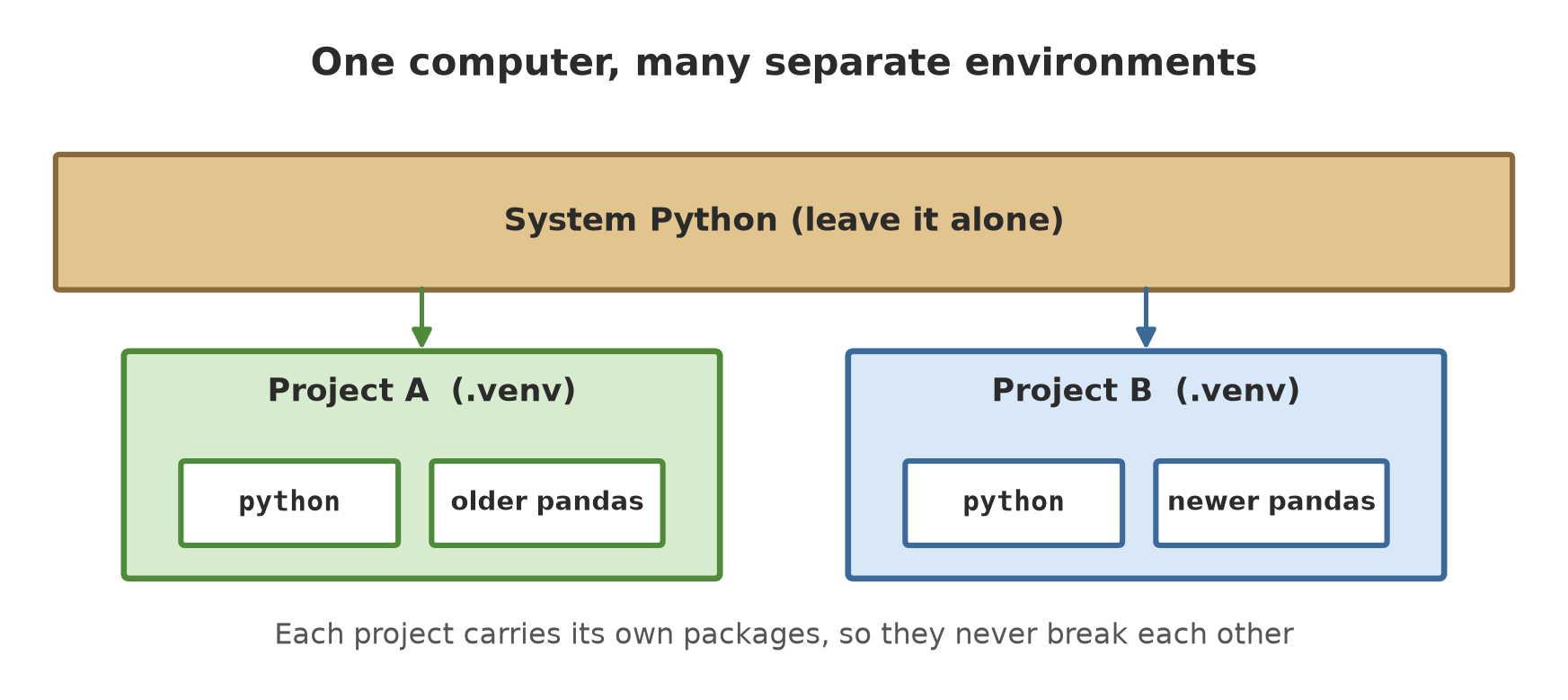
In Chapter 16, the inventory project was born as a set of classes. From Chapter 18 on, it will use outside libraries (pytest, ruff). Here the classic problem appears. Project A needs an old pandas, project B needs a new one. Install both into one Python and one of them breaks. It is like two farmers sharing one fertiliser store: the moment one changes the contents, the other is disturbed.
The solution is an environment: a separate Python “room” for each project, with its own packages. A dependency is an outside package your project needs.
venv: making a new room
venv is Python’s built-in module for making environments. The terminal command: python -m venv .venv (the name .venv is only a habit). The script below makes one through code and inspects it.
01_make_venv.py
# Chapter 17 - Making a venv: a Python "room" just for one project
import os
import shutil
import subprocess
import sys
import venv
from pathlib import Path

work = Path(__file__).parent / "_tmp"
shutil.rmtree(work, ignore_errors=True)
work.mkdir()
location = work / "sample_venv"

venv.create(location, with_pip=True)          # same as: python -m venv sample_venv

bin_folder = location / ("Scripts" if os.name == "nt" else "bin")
print("Contents of the venv folder:", sorted(p.name for p in location.iterdir()))
print("Important files present:", [
    name for name in ("python", "pip", "activate")
    if any(p.stem == name for p in bin_folder.iterdir())
])

cfg = (location / "pyvenv.cfg").read_text(encoding="utf-8").splitlines()
print([line for line in cfg if line.startswith("include-system-site-packages")])

venv_python = bin_folder / ("python.exe" if os.name == "nt" else "python")
code = "import sys; print(sys.prefix != sys.base_prefix)"
inside = subprocess.run([venv_python, "-c", code], capture_output=True, text=True).stdout.strip()
system_python = Path(sys.base_prefix) / ("python.exe" if os.name == "nt" else "bin/python3")
outside = subprocess.run([system_python, "-c", code], capture_output=True, text=True).stdout.strip()
print("Python inside the venv is separate from the system?", inside)
print("System Python (parent of the venv) is separate?", outside)
Contents of the venv folder: ['Include', 'Lib', 'Scripts', 'pyvenv.cfg']
Important files present: ['python', 'pip', 'activate']
['include-system-site-packages = false']
Python inside the venv is separate from the system? True
System Python (parent of the venv) is separate? False- The new folder holds
Scripts(namedbinon Linux/macOS),Lib(where packages are kept),Include, andpyvenv.cfg. InsideScriptssitpython,pip, and theactivatescripts. include-system-site-packages = falsemeans packages in the system Python are not visible. This room is truly clean.- The Python inside the venv reports
sys.prefix != sys.base_prefix=True: it knows it lives in a venv. The system Python reportsFalse.
To use it in a terminal, activate it first. Activation puts the Scripts folder at the front of the command search path, so the python and pip that run are the venv’s. According to the official Python documentation (read 2026-10-10):
| Terminal | Activation command |
|---|---|
| Windows, cmd | .venv\Scripts\activate.bat |
| Windows, PowerShell | .venv\Scripts\Activate.ps1 |
| Linux/macOS, bash/zsh | source .venv/bin/activate |
To leave, type deactivate. Activation is optional: you can also call .venv\Scripts\python.exe directly, which is what the scripts in this chapter do.
Do not move or copy a venv folder elsewhere, and do not keep it in git. The Python documentation explains that scripts inside hold absolute paths, so a moved venv may break. The right way: throw it away and rebuild it from the package list (requirements.txt or pyproject.toml). Python 3.13 and later even put a .gitignore inside the venv automatically.
pip and requirements.txt
pip is Python’s built-in package installer; packages are downloaded from PyPI (the Python Package Index, the official package store). The script below proves venv isolation: the package requests is installed in one venv, its list is frozen (pip freeze) into requirements.txt, and that file builds a second venv.
02_package_isolation.py
# Chapter 17 - pip inside a venv: install, freeze, reinstall from requirements.txt
import os
import shutil
import subprocess
import venv
from pathlib import Path

work = Path(__file__).parent / "_tmp"
shutil.rmtree(work, ignore_errors=True)
work.mkdir()


def python_of(location):
    return location / ("Scripts/python.exe" if os.name == "nt" else "bin/python")


def run(location, *arguments):
    return subprocess.run([python_of(location), *arguments], capture_output=True, text=True)


venv_a = work / "venv_a"
venv.create(venv_a, with_pip=True)

result = run(venv_a, "-c", "import requests")
print("Before installing:", result.stderr.strip().splitlines()[-1])

run(venv_a, "-m", "pip", "install", "--quiet", "--disable-pip-version-check", "requests")
result = run(venv_a, "-c", "import requests; print('imported successfully')")
print("After installing:", result.stdout.strip())

frozen = run(venv_a, "-m", "pip", "freeze").stdout
(work / "requirements.txt").write_text(frozen, encoding="utf-8")
print("--- requirements.txt ---")
print(frozen.strip())

venv_b = work / "venv_b"
venv.create(venv_b, with_pip=True)
run(venv_b, "-m", "pip", "install", "--quiet", "--disable-pip-version-check",
    "-r", str(work / "requirements.txt"))
frozen_b = run(venv_b, "-m", "pip", "freeze").stdout
print("venv_b identical to venv_a?", frozen_b == frozen)
Before installing: ModuleNotFoundError: No module named 'requests'
After installing: imported successfully
--- requirements.txt ---
certifi==2026.7.22
charset-normalizer==3.5.2
idna==3.20
requests==2.34.2
urllib3==2.8.0
venv_b identical to venv_a? TrueThis code was really run once by the author and the output saved, because it needs the internet and contains version numbers that keep changing. So the version numbers above are the state at the time of writing; on your computer they will differ.
Trace the result:
- Before installing,
import requestsfails withModuleNotFoundError. A new room is indeed empty. - After
pip install requests, the import works. pip freezerecords five packages, not one:requestsbrought four other dependencies (certifi,charset-normalizer,idna,urllib3). Each is pinned to an exact version (==).- The second venv, built from
requirements.txt, is identical to the first (True). That is the point of this file: a colleague or a server can build the same room.
Install packages with python -m pip install ..., not just pip install .... The first form makes sure the pip used belongs to the Python you are calling. That avoids the “installed into the wrong Python” mistake.
pyproject.toml: the project’s identity card
requirements.txt is only a package list. Modern projects keep everything in one file, pyproject.toml: name, version, required Python, dependencies, and tool settings (pytest, ruff). The format is TOML: sections are written [name], contents key = value. This is the file of the inventory package:
[build-system]
requires = ["setuptools>=61"]
build-backend = "setuptools.build_meta"

[project]
name = "inventory"
version = "0.1.0"
requires-python = ">=3.12"
dependencies = []

[project.optional-dependencies]
dev = ["pytest", "ruff"]

[tool.ruff]
line-length = 88[build-system]tells the installer how to “build” the package (here with setuptools).[project]holds the project identity.dependenciesare the required packages (empty:inventoryonly uses the standard library).optional-dependenciesholds extra groups, heredevfor developer tools.[tool.xxx]is a settings space for tools, such as[tool.ruff]and[tool.pytest.ini_options](Chapter 18).
Python 3.11 and later has the built-in module tomllib to read it:
03_read_pyproject.py
# Chapter 17 - Reading pyproject.toml with tomllib (built into Python 3.11+)
import tomllib
from pathlib import Path

file = Path(__file__).parent / "project" / "pyproject.toml"
with open(file, "rb") as f:             # tomllib requires binary mode
    data = tomllib.load(f)

project = data["project"]
print("Project name     :", project["name"])
print("Version          :", project["version"])
print("Needs Python     :", project["requires-python"])
print("Dependencies     :", project["dependencies"])
print("Dev dependencies :", project["optional-dependencies"]["dev"])
print("Build tool       :", data["build-system"]["build-backend"])
print("[tool.*] sections:", sorted(data["tool"]))
print("Ruff line length :", data["tool"]["ruff"]["line-length"])
Project name : inventory
Version : 0.1.0
Needs Python : >=3.12
Dependencies : []
Dev dependencies : ['pytest', 'ruff']
Build tool : setuptools.build_meta
[tool.*] sections: ['ruff', 'setuptools']
Ruff line length : 88Remember: TOML is read as an ordinary dict. data["project"]["name"] is a dict inside a dict (Chapter 9).
uv: the new-generation package manager
uv is a Python package and project manager made by Astral (the maker of ruff, which we use in Chapter 19). It does the work of venv + pip + version locking in one command, and is very fast. Based on the official uv documentation (read 2026-10-10) and tries on the author’s computer:
| Command | Function |
|---|---|
uv init |
makes a new project (pyproject.toml, .python-version, main.py) |
uv add package |
adds a dependency to pyproject.toml, makes .venv and uv.lock |
uv run command |
runs a command in the project environment, making sure it is up to date |
uv lock / uv sync |
updates the lock file / aligns the environment with the lock |
uv tree |
shows the dependency tree |
uv venv, uv pip ... |
compatible replacements for python -m venv and pip |
04_uv_new_project.py
# Chapter 17 - uv: a new project from scratch (init, add, run, tree)
import shutil
import subprocess
from pathlib import Path

work = Path(__file__).parent / "_tmp" / "uv_demo"
shutil.rmtree(work, ignore_errors=True)
work.mkdir(parents=True)


def uv(*arguments):
    result = subprocess.run(["uv", *arguments], cwd=work, capture_output=True, text=True)
    return result.stdout.strip()


uv("init", "--name", "inventory-demo", "--no-readme", "--vcs", "none", "--python", "3.12")
print("Files after uv init:", sorted(p.name for p in work.iterdir()))

uv("add", "requests")
print("Files after uv add :", sorted(p.name for p in work.iterdir()))

lines = (work / "pyproject.toml").read_text(encoding="utf-8").splitlines()
print("--- pyproject.toml (dependencies) ---")
print("\n".join(lines[lines.index("dependencies = [") : lines.index("]")+1]))

print("--- uv run ---")
print(uv("run", "python", "-c", "import requests; print('requests is ready to use')"))

print("--- uv tree ---")
print(uv("tree"))
Files after uv init: ['.python-version', 'main.py', 'pyproject.toml']
Files after uv add : ['.python-version', '.venv', 'main.py', 'pyproject.toml', 'uv.lock']
--- pyproject.toml (dependencies) ---
dependencies = [
"requests>=2.34.2",
]
--- uv run ---
requests is ready to use
--- uv tree ---
inventory-demo v0.1.0
└── requests v2.34.2
├── certifi v2026.7.22
├── charset-normalizer v3.5.2
├── idna v3.20
└── urllib3 v2.8.0This too was really run and the output saved (it needs the internet and contains version numbers). Notice:
uv initmakes only three files..venvanduv.lockare born only whenuv addruns.uv.lockis a lock file holding the exact versions of all packages, managed by uv and not to be edited by hand (uv documentation).uv add requestswrites"requests>=2.34.2"intopyproject.toml: a lower bound, not a fixed price. The exact version lives inuv.lock.uv treeshows the tree:requestson top, four dependencies beneath it, the same as thepip freezeresult earlier.
Two kinds of list have different jobs. pyproject.toml says “which packages I need” (loose: >=2.34.2). A lock file (uv.lock, a frozen requirements.txt) says “the exact versions installed” so everyone gets the same result.
Running Project I1: installing inventory
Now the inventory package from Chapter 16 is installed in its own environment with uv. The -e option (editable) makes Python read code directly from the project folder, so code changes show up at once without reinstalling.
05_install_project.py
# Chapter 17 - Running project I1: installing the inventory package in its own environment
import os
import shutil
import subprocess
from pathlib import Path

parent = Path(__file__).parent
work = parent / "_tmp" / "install"
shutil.rmtree(work, ignore_errors=True)
work.mkdir(parents=True)
copy = work / "project"
shutil.copytree(parent / "project", copy)

environment = work / "venv_inventory"
subprocess.run(["uv", "venv", str(environment), "--quiet"], check=True)
python = environment / ("Scripts/python.exe" if os.name == "nt" else "bin/python")

# -e = "editable": code in the project folder is read directly, no reinstall needed
subprocess.run(["uv", "pip", "install", "--quiet", "--python", str(python), "-e", str(copy)],
               check=True)

code = """
from importlib.metadata import version
from pathlib import Path

import inventory
from inventory.sample import make_sample

print("Installed: inventory", version("inventory"))
print("Code read from the project folder?", Path(inventory.__file__).parent.parent.name == "project")
for unit in make_sample():
    print(unit.summary())
"""
result = subprocess.run([python, "-c", code], capture_output=True, text=True)
print(result.stdout.strip())
Installed: inventory 0.1.0
Code read from the project folder? True
Forest plot A: 3 record(s), 2.0 healthy trees
Garden Coffee: 2 record(s), 555.5 kg
Rice field Lowland: 1 record(s), 1250.0 kg (2500 kg/ha)
Pond A: 1 record(s), 432.4 kg biomass
Pen 1: 3 record(s), 1151.5 kg weightThe storyline: a copy of the project is placed in _tmp/, uv venv makes an empty room, uv pip install -e installs the package (uv downloads the setuptools build tool, which is why it needs the internet, and the output is saved from one run). Then inside that room inventory can be imported from anywhere, and the result matches Chapter 16 exactly: forest plot A, coffee garden, lowland rice field, pond, and pen.
Poetry: a rival to uv
poetry is an older, popular Python project manager; it also uses pyproject.toml and makes a lock file, poetry.lock. From the official poetry documentation (read 2026-10-10): poetry new makes a project folder, poetry add adds a dependency and installs it, poetry install installs all dependencies, and poetry run runs a command in the project environment. Dependencies are written in project.dependencies (the PEP 621 standard); older poetry used tool.poetry.dependencies.
07_poetry.py
# Chapter 17 - The basic poetry flow (an example only; not run when the book is built)
import subprocess

commands = [
    ["poetry", "new", "inventory-poetry"],    # makes a new project folder
    ["poetry", "add", "requests"],            # adds a dependency + locks versions (poetry.lock)
    ["poetry", "install"],                    # installs all project dependencies
    ["poetry", "run", "pytest"],              # runs a command in the project environment
]
for c in commands:
    print("$", " ".join(c))
    subprocess.run(c, check=True)
This code was not run when the book was built because poetry is not installed on the author’s computer (see the result of 06_check_tools.py below), so no output is shown. The commands were matched against the official documentation but not tested directly.
Anaconda and conda
Anaconda is another way to install and manage Python, popular in data science. Three terms are often mixed up:
- conda: a command-line tool to make environments and install packages. Its documentation says conda provides “package, dependency, and environment management for any language”, so not only Python packages.
- Anaconda Distribution: an installer bundle that brings conda, Python, Anaconda Navigator (a windowed app to make environments and open tools without typing commands), and 600+ ready-made data science packages, about 9.7 GB.
- Miniconda: the slim version: conda, Python, 130+ packages, no Navigator, about 900 MB.
(Size figures from the official Anaconda pages, read 2026-10-10.)
How it differs from python.org: the python.org installer gives only Python; the rest you handle with venv and pip. Anaconda gives Python plus an environment manager and many packages at once. Its packages come from conda channels, not from PyPI.
The flow in a terminal (from the official conda documentation, read 2026-10-10):
conda create --name inventory python numpy    # make an environment holding Python and numpy
conda activate inventory                      # enter the environment
conda install --name inventory matplotlib     # install another package
conda info --envs                             # list environments
conda deactivate                              # leave
08_conda.py
# Note: "conda activate inventory" is typed directly in the terminal, not through a script.
# Chapter 17 - The basic conda flow (an example only; not run when the book is built)
import subprocess

commands = [
    ["conda", "create", "--name", "inventory", "python", "numpy"],   # make an environment + contents
    ["conda", "install", "--name", "inventory", "numpy"],            # install a package
    ["conda", "info", "--envs"],                                     # list environments
]
for c in commands:
    print("$", " ".join(c))
    subprocess.run(c, check=True)
This code was not run when the book was built because conda is not installed on the author’s computer, so no output is shown and the whole conda part of this chapter has not been tested directly. (conda activate is deliberately absent from the script: it is typed in the terminal.)
06_check_tools.py
# Chapter 17 - Checking which tools exist on the computer
import shutil

for tool in ["python", "pip", "uv", "git", "poetry", "conda"]:
    path = shutil.which(tool)
    print(f"{tool:7}", "present" if path else "NOT present")
python present
pip present
uv present
git present
poetry NOT present
conda NOT presentThis output was taken once on the author’s computer and differs if run on yours. Here uv and git are present, poetry and conda are not.
conda vs pip: pip installs from PyPI, conda from conda channels. The conda documentation advises: if you need both in one environment, install as much as possible with conda first, then pip (“Use pip only after conda”). conda-forge is a community-run channel, separate from the defaults channel of Anaconda, Inc. The conda-forge documentation suggests Miniforge as the easiest way to start.
Jupyter: the official Anaconda pages say Jupyter Notebook can be launched from Navigator. (They do not spell out whether Jupyter is bundled; check after installing.)
Anaconda licence. Anaconda is not free for everyone. According to the Anaconda Terms of Service (https://www.anaconda.com/legal/terms/terms-of-service, the stated date is 15 July 2025, read 2026-10-10), use of the platform is free if you are: (1) an individual for personal, non-commercial purposes, (2) acting for or with an eligible academic institution, (3) acting for or with an eligible non-profit and research organisation, or (4) acting for a for-profit organisation with 200 or fewer employees or contractors (including affiliates). A for-profit organisation with more than 200 employees or contractors that does not fall in a free category must subscribe to the Business plan. The pricing page (https://www.anaconda.com/pricing, read 2026-10-10) writes “200+” and names the Free plan for people learning Python. Anaconda reserves the right to ask for proof of eligibility. These terms may change, so read the official page yourself before using Anaconda at work. The author did not check whether these terms apply to the conda-forge channel; the terms document does not mention it.
When to choose which? The author’s recommendation for readers of this book: for general development projects (applications, automation), venv + pip or uv is enough, light, and free of licence questions. Consider Anaconda/conda if you work with scientific libraries that are hard to install with pip, or if your team already uses it. At work, check the licence terms above first.
On Windows, PowerShell may refuse Activate.ps1 because of its script execution policy. The Python documentation suggests Set-ExecutionPolicy -ExecutionPolicy RemoteSigned -Scope CurrentUser. This changes a security setting of your own account, so do it only if you understand the consequences; the alternative is to call .venv\Scripts\python.exe directly without activation.
Exercises
- In a terminal, make a venv
practice_venvwithpython -m venv practice_venv, activate it, then typepython -c "import sys; print(sys.prefix)". Compare with the result without activation. - Install
six(a small package) in that venv withpython -m pip install six, then savepython -m pip freeze > requirements.txtand look at its contents. - Change
03_read_pyproject.pyso it also prints thedevlist, one package per line. - Challenge: with
uv, make a new project (uv init), addpytestas a development dependency (uv add --dev pytest; checkuv add --help), then runuv run pytest --version.
Chapter Summary
- Environment = a separate Python room per project; dependency = an outside package needed.
- venv makes environments; activation is optional; do not move them or put them in git, just rebuild.
- pip installs from PyPI;
pip freezeproducesrequirements.txtwith exact versions. pyproject.tomlkeeps the project identity, dependencies, and tool settings; read withtomllib.- uv combines venv, pip, and a lock file (
uv.lock) quickly. poetry is its rival (not tested here). - Anaconda/conda has its own uses and licence; read the official terms before using it at work. The conda part of this book has not been tested directly.
Next, in Chapter 18: basic testing with pytest, how to write code that checks your own code.