Chapter 42 — Interfaces: Commands, Windows, and Dashboards
Series I5 — First Applications: Web, Maps, and Dashboards
All scripts for this chapter are in the kode/ch42/ folder. On the web version, you can also download them all at once (zip).
The scripts you have written so far are run by typing python name.py. That is enough for you, but other people need a friendlier way in. Picture a food stall: some people order at the counter (fast, just say the order), some sit at a table with a picture menu, and some look at the notice board showing today’s sales. One and the same kitchen, three ways to interact. Those are the three kinds of interface we discuss.
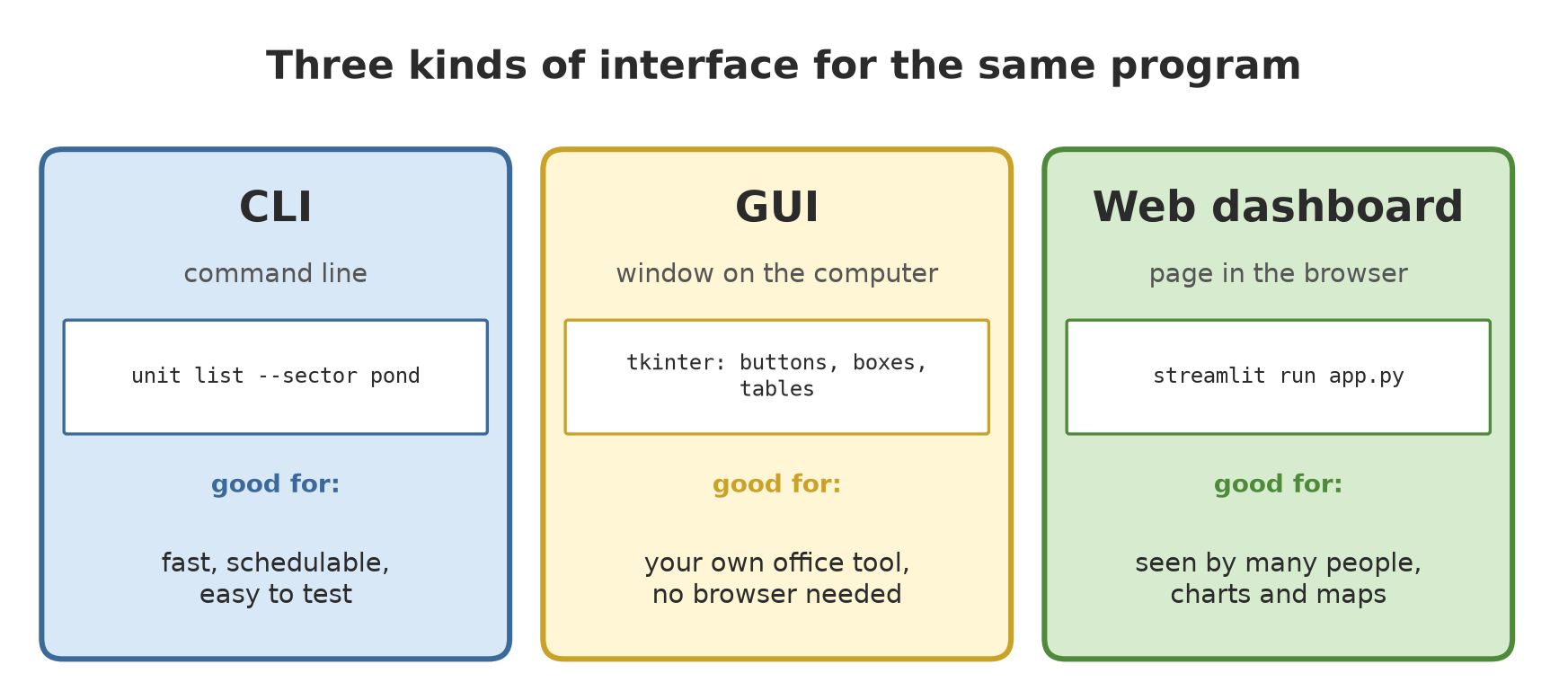
In this chapter we use the same sample business-unit data (15 units in five sectors, all numbers fictional) from the file data/business_units.csv, read by the helper module unit_data.py.
CLI with argparse
A CLI (Command-Line Interface) is a program used by typing commands in a terminal, like git commit -m "message". argparse is Python’s built-in module for reading that typing.
01_argparse_basics.py
# Chapter 42 - argparse: reading arguments from the command line
import argparse

parser = argparse.ArgumentParser(prog="feed_amount", description="Compute the daily feed for a pond.")
parser.add_argument("biomass_kg", type=float, help="fish biomass (kg)")                 # positional, required
parser.add_argument("--percent", type=float, default=3.0, help="feed percentage (default 3.0)")  # option
parser.add_argument("--detail", action="store_true", help="show the working")          # switch

# Normally argparse reads what you type in the terminal. Here we pass our own lists so you can try it.
for typed in (["432.4"], ["432.4", "--percent", "2.5", "--detail"]):
    args = parser.parse_args(typed)
    feed = args.biomass_kg * args.percent / 100
    print(f"typed {typed} -> {args}")
    print(f"  feed: {feed:.2f} kg" + (" (working: biomass x percent / 100)" if args.detail else ""))

print()
parser.print_help()
typed ['432.4'] -> Namespace(biomass_kg=432.4, percent=3.0, detail=False)
feed: 12.97 kg
typed ['432.4', '--percent', '2.5', '--detail'] -> Namespace(biomass_kg=432.4, percent=2.5, detail=True)
feed: 10.81 kg (working: biomass x percent / 100)
usage: feed_amount [-h] [--percent PERCENT] [--detail] biomass_kg
Compute the daily feed for a pond.
positional arguments:
biomass_kg fish biomass (kg)
options:
-h, --help show this help message and exit
--percent PERCENT feed percentage (default 3.0)
--detail show the workingThree kinds of arguments appear here:
- Positional (
biomass_kg): required, recognized by its order. - Option (
--percent): starts with a double hyphen, may be skipped, has a default value. - Switch (
--detail,action="store_true"):Truewhen written,Falsewhen not.
type=float makes argparse turn the text "432.4" into a number. The result of parse_args() is a Namespace object whose attributes you read (args.percent). Normally parse_args() reads what is typed in the terminal; in this script we give it a list so it can be tried without a terminal (the same trick is used for testing). The arithmetic: 432.4 × 3 / 100 = 12.97 kg and 432.4 × 2.5 / 100 = 10.81 kg. The bottom of the output is the automatic help (--help) that argparse builds from the declarations, for free.
When the user mistypes
A good tool rejects wrong input clearly. We test the real unit tool (the helper module cli_argparse.py, shown below) through subprocess from Chapter 41:
cli_argparse.py
# Chapter 42 - The "unit" command-line tool, argparse version (helper module; run through scripts 02 and 03)
import argparse
import sys

from unit_data import read_units, summarize_by_sector

SECTORS = ["forest", "plantation", "paddy", "pond", "barn"]


def build_parser():
    parser = argparse.ArgumentParser(prog="unit", description="View the business-unit data (fictional).")
    sub = parser.add_subparsers(dest="command", required=True)

    list_cmd = sub.add_parser("list", help="show units")
    list_cmd.add_argument("--sector", choices=SECTORS, help="only one sector")
    list_cmd.add_argument("--max", type=int, default=0, help="row limit (0 = all)")

    sub.add_parser("summary", help="summary per sector")
    return parser


def main(argv=None):
    args = build_parser().parse_args(argv)
    units = read_units()
    if args.command == "list":
        if args.sector:
            units = [u for u in units if u["sector"] == args.sector]
        if args.max:
            units = units[: args.max]
        for u in units:
            print(f'{u["id"]:3} {u["sector"]:10} {u["unit"]:8} {u["value"]:8.1f} {u["uom"]}')
    else:
        for sector, r in summarize_by_sector(units).items():
            print(f'{sector:10} {r["count"]} units, mean {r["mean"]:.1f} {r["uom"]}')
    return 0


if __name__ == "__main__":
    sys.exit(main())
02_argparse_errors.py
# Chapter 42 - argparse: what happens when the user mistypes
import subprocess
import sys

for arguments in (["list", "--sector", "lake"], ["list", "--max", "two"], []):
    result = subprocess.run(
        [sys.executable, "cli_argparse.py", *arguments],
        capture_output=True, text=True, encoding="utf-8",
    )
    print("arguments:", arguments)
    print("exit code:", result.returncode)
    print(result.stderr.strip().splitlines()[-1])
    print()
arguments: ['list', '--sector', 'lake']
exit code: 2
unit list: error: argument --sector: invalid choice: 'lake' (choose from 'forest', 'plantation', 'paddy', 'pond', 'barn')
arguments: ['list', '--max', 'two']
exit code: 2
unit list: error: argument --max: invalid int value: 'two'
arguments: []
exit code: 2
unit: error: the following arguments are required: commandThe official documentation describes this behaviour: on invalid input, parse_args() prints a usage message to stderr and exits with exit code 2. The choices=SECTORS setting makes the sector lake rejected, type=int rejects two, and a subcommand with required=True rejects an empty input.
Subcommands
Big tools have several commands (git commit, git push). In argparse, that is done with add_subparsers(): list and summary in our unit tool. Test it through a child program, exactly as people would use it:
03_argparse_subcommands.py
# Chapter 42 - argparse: the "unit" tool with subcommands, tested through subprocess
import subprocess
import sys


def unit(*arguments):
    result = subprocess.run([sys.executable, "cli_argparse.py", *arguments],
                            capture_output=True, text=True, encoding="utf-8")
    return result.returncode, result.stdout


for arguments in (["summary"], ["list", "--sector", "pond"], ["list", "--max", "2"]):
    code, output = unit(*arguments)
    print(f"$ unit {' '.join(arguments)}   (exit code {code})")
    print(output)
$ unit summary (exit code 0)
forest 3 units, mean 35.2 cm
plantation 4 units, mean 257.5 kg
paddy 2 units, mean 1115.2 kg
pond 3 units, mean 369.3 kg
barn 3 units, mean 383.8 kg
$ unit list --sector pond (exit code 0)
L1 pond Pond A 432.4 kg
L2 pond Pond B 380.0 kg
L3 pond Pond C 295.5 kg
$ unit list --max 2 (exit code 0)
H1 forest Plot A 32.5 cm
H2 forest Plot B 45.2 cmCLI with Typer
argparse is strong, but wordy. Typer (a third-party library built on Click) turns it around: you write an ordinary function with type hints (Chapter 33), and Typer makes the command. A parameter without a default becomes a required argument; a parameter with a default becomes an option; a bool becomes a switch.
04_typer_basics.py
# Chapter 42 - Typer: an ordinary function becomes a command, tested without a terminal
import typer
from typer.testing import CliRunner

app = typer.Typer(add_completion=False)


@app.command()
def feed(biomass_kg: float, percent: float = 3.0, detail: bool = False):
    """Compute the daily feed for a pond."""
    result = biomass_kg * percent / 100
    typer.echo(f"feed: {result:.2f} kg")
    if detail:
        typer.echo("working: biomass x percent / 100")


runner = CliRunner()      # Typer's built-in tester: calls the app without opening a terminal

for typed in (["432.4"], ["432.4", "--percent", "2.5", "--detail"], ["lots"]):
    result = runner.invoke(app, typed)
    print(typed, "-> exit code", result.exit_code)
    print(result.output.strip().splitlines()[0] if result.exit_code == 0 else "(usage error)")

result = runner.invoke(app, ["--help"])
print()
print(result.output)
['432.4'] -> exit code 0
feed: 12.97 kg
['432.4', '--percent', '2.5', '--detail'] -> exit code 0
feed: 10.81 kg
['lots'] -> exit code 2
(usage error)
Usage: feed [OPTIONS] {biomass_kg}
Compute the daily feed for a pond.
┌─ Arguments ─────────────────────────────────────────────────────────────────┐
│ * biomass_kg <float> [required] │
└─────────────────────────────────────────────────────────────────────────────┘
┌─ Options ───────────────────────────────────────────────────────────────────┐
│ --percent <float> [default: 3.0] │
│ --detail --no-detail [default: no-detail] │
│ --help Show this message and exit. │
└─────────────────────────────────────────────────────────────────────────────┘- The three inputs give: success (12.97), success with an option (10.81), and a usage error (exit code 2) for
lots, because it is not a number. CliRunneris Typer’s built-in tester: it calls the app inside the same process and keeps theexit_codeandoutput. No terminal needs to be opened, so it is fast and suits automatic tests.- The automatic help uses a boxed look (made by the
richlibrary). Notice--detailand--no-detail: Typer adds the switch pair by itself.
Here is the unit tool in its Typer version, with three commands (list, summary, report):
cli_typer.py
# Chapter 42 - The "unit" command-line tool, Typer version (helper module; used by scripts 04 to 09)
from enum import Enum
from pathlib import Path
from typing import Annotated, Optional

import typer

from unit_data import read_units, summarize_by_sector

app = typer.Typer(help="View the business-unit data (fictional).", no_args_is_help=True, add_completion=False)


class Sector(str, Enum):
    forest = "forest"
    plantation = "plantation"
    paddy = "paddy"
    pond = "pond"
    barn = "barn"


@app.command("list")
def list_units(
    sector: Annotated[Optional[Sector], typer.Option(help="only one sector")] = None,
    max_rows: Annotated[int, typer.Option("--max", min=0, help="row limit (0 = all)")] = 0,
):
    """Show units."""
    units = read_units()
    if sector:
        units = [u for u in units if u["sector"] == sector.value]
    if max_rows:
        units = units[:max_rows]
    for u in units:
        typer.echo(f'{u["id"]:3} {u["sector"]:10} {u["unit"]:8} {u["value"]:8.1f} {u["uom"]}')


@app.command()
def summary():
    """Summary per sector."""
    for sector, r in summarize_by_sector(read_units()).items():
        typer.echo(f'{sector:10} {r["count"]} units, mean {r["mean"]:.1f} {r["uom"]}')


@app.command()
def report(output: Annotated[Path, typer.Argument(help="target Markdown file")]):
    """Write a short report to a file."""
    lines = ["# Business unit summary (fictional data)", ""]
    for sector, r in summarize_by_sector(read_units()).items():
        lines.append(f'- {sector}: {r["count"]} units, mean {r["mean"]:.1f} {r["uom"]}')
    output.parent.mkdir(parents=True, exist_ok=True)
    output.write_text("\n".join(lines) + "\n", encoding="utf-8")
    typer.echo(f"report written: {output.name}")


if __name__ == "__main__":
    app()
An Enum (a fixed list of choices) replaces choices. Annotated[..., typer.Option(...)] adds a description and a limit (min=0). The functions above can be run as a program:
05_typer_subcommands.py
# Chapter 42 - Typer: the full "unit" tool run as a real program through subprocess
import subprocess
import sys


def unit(*arguments):
    result = subprocess.run([sys.executable, "cli_typer.py", *arguments],
                            capture_output=True, text=True, encoding="utf-8")
    return result.returncode, result.stdout + result.stderr


for arguments in (["--help"], ["list", "--sector", "barn"], ["list", "--sector", "lake"]):
    code, text = unit(*arguments)
    print(f"$ unit {' '.join(arguments)}   (exit code {code})")
    print(text)
$ unit --help (exit code 0)
Usage: cli_typer.py [OPTIONS] COMMAND [ARGS]...
View the business-unit data (fictional).
┌─ Options ───────────────────────────────────────────────────────────────────┐
│ --help Show this message and exit. │
└─────────────────────────────────────────────────────────────────────────────┘
┌─ Commands ──────────────────────────────────────────────────────────────────┐
│ list Show units. │
│ summary Summary per sector. │
│ report Write a short report to a file. │
└─────────────────────────────────────────────────────────────────────────────┘
$ unit list --sector barn (exit code 0)
D1 barn Pen 1 350.0 kg
D2 barn Pen 2 412.5 kg
D3 barn Pen 3 389.0 kg
$ unit list --sector lake (exit code 2)
Usage: cli_typer.py list [OPTIONS]
Try 'cli_typer.py list --help' for help.
┌─ Error ─────────────────────────────────────────────────────────────────────┐
│ Invalid value for '--sector': 'lake' is not one of 'forest', 'plantation', │
│ 'paddy', 'pond', 'barn'. │
└─────────────────────────────────────────────────────────────────────────────┘The sector lake is rejected with exit code 2 and an error box naming the valid choices.
Choose argparse when you want zero dependencies (it is built into Python). Choose Typer when your tool has many commands and you like short code based on type hints. Both give automatic help and clear exit codes.
Testing a CLI
An untested CLI will break silently. With CliRunner, each behaviour becomes one check:
06_cli_tests.py
# Chapter 42 - Testing a Typer CLI with CliRunner (pytest style, written as a script)
from pathlib import Path

from typer.testing import CliRunner

from cli_typer import app

runner = CliRunner()
passed = 0


def check(condition, name):
    global passed
    print(("PASS  " if condition else "FAIL  ") + name)
    passed += bool(condition)


result = runner.invoke(app, ["summary"])
check(result.exit_code == 0 and "pond" in result.output, "summary shows the pond sector")

result = runner.invoke(app, ["list", "--sector", "paddy"])
check(len(result.output.strip().splitlines()) == 2, "list --sector paddy gives 2 rows")

result = runner.invoke(app, ["list", "--max", "4"])
check(len(result.output.strip().splitlines()) == 4, "list --max 4 gives 4 rows")

result = runner.invoke(app, ["list", "--sector", "lake"])
check(result.exit_code == 2, "unknown sector is rejected with exit code 2")

target = Path(__file__).parent / "_tmp" / "summary.md"
result = runner.invoke(app, ["report", str(target)])
check(result.exit_code == 0 and target.read_text(encoding="utf-8").startswith("# Business unit"),
      "report writes a Markdown file")

print(f"\n{passed} of 5 checks passed")
PASS summary shows the pond sector
PASS list --sector paddy gives 2 rows
PASS list --max 4 gives 4 rows
PASS unknown sector is rejected with exit code 2
PASS report writes a Markdown file
5 of 5 checks passedThis is the pytest style (Chapter 18) written as a script so the output shows. Notice that testing the failure path (an unknown sector must give code 2) is just as important as the success path. There are two ways to test a CLI in this chapter: CliRunner (fast, inside one process) and subprocess (a little slower, but exactly how people use it in a terminal).
A simple GUI with tkinter
A GUI (Graphical User Interface) is a program with windows: buttons, selection boxes, tables. tkinter is the GUI library that comes with Python (it wraps Tk). The official documentation notes that tkinter is an optional module: if it is missing from your copy of Python, look for instructions from whoever provided your Python. On the author’s computer it is there (Tk version 9.0). ttk is the set of themed widgets recommended for new code.
gui_unit.py
# Chapter 42 - A tkinter window for viewing business units (helper module)
import tkinter as tk
from tkinter import ttk

from unit_data import read_units

SECTORS = ["all", "forest", "plantation", "paddy", "pond", "barn"]


def build_window(root):
    """Builds the window contents and returns the widgets that need testing."""
    root.title("Business units (fictional data)")
    choice = tk.StringVar(value="all")
    status = tk.StringVar()

    top = ttk.Frame(root, padding=8)
    top.pack(fill="x")
    ttk.Label(top, text="Sector:").pack(side="left")
    box = ttk.Combobox(top, textvariable=choice, values=SECTORS, state="readonly", width=10)
    box.pack(side="left", padx=6)

    table = ttk.Treeview(root, columns=("unit", "kind", "value"), show="headings", height=8)
    for column, title in (("unit", "Unit"), ("kind", "Kind"), ("value", "Value")):
        table.heading(column, text=title)
    table.pack(fill="both", expand=True, padx=8)
    ttk.Label(root, textvariable=status, padding=8).pack(anchor="w")

    def load(*_):
        table.delete(*table.get_children())
        chosen = [u for u in read_units() if choice.get() in ("all", u["sector"])]
        for u in chosen:
            table.insert("", "end", values=(u["unit"], u["kind"], f'{u["value"]} {u["uom"]}'))
        status.set(f"{len(chosen)} units shown")

    box.bind("<<ComboboxSelected>>", load)
    load()
    return choice, table, status, load


if __name__ == "__main__":
    window = tk.Tk()
    build_window(window)
    window.mainloop()          # shows the window and waits for the user
This window has a sector selection box, a table of units, and a status line. Choosing a sector calls load(), which empties the table and fills it again. Notice the good pattern: the whole window content is built by the function build_window(root), while mainloop() lives only in the if __name__ == "__main__": part.
This code was not run when the book was built (the mainloop() part) because a visible window needs a screen and a user, so no output is shown. You run it yourself with python gui_unit.py. But its content can still be tested without showing anything, because the structure is separated:
07_tkinter_test.py
# Chapter 42 - tkinter: testing the window WITHOUT showing it (the window is hidden)
import tkinter as tk

from gui_unit import build_window

root = tk.Tk()
root.withdraw()                      # hide it: no window appears on the screen
choice, table, status, load = build_window(root)
root.update()

print("window title :", root.title())
print("at the start :", status.get(), "| table rows:", len(table.get_children()))

for sector in ("pond", "forest"):
    choice.set(sector)               # as if the user picked it in the combo box
    load()
    rows = [table.item(i, "values")[0] for i in table.get_children()]
    print(f"{sector:7}      :", status.get(), "->", rows)

root.destroy()
window title : Business units (fictional data)
at the start : 15 units shown | table rows: 15
pond : 3 units shown -> ['Pond A', 'Pond B', 'Pond C']
forest : 3 units shown -> ['Plot A', 'Plot B', 'Plot C']root.withdraw() hides the window so nothing appears on screen. Then we imitate the user: choice.set("pond") is like picking in the box, and load() is like the selection event. The results match: 15 units at the start, 3 pond units (Pond A, B, C), and 3 forest units (Plot A, B, C).
What is tested here is the window’s logic (the table contents, the status text). The looks (button positions, colours, sizes) cannot be checked without seeing the window itself. Checking the looks is still your job, with your own eyes, on your computer.
An introductory data dashboard
A dashboard is a single page that summarizes the important numbers with tables and charts, like a car’s instrument panel. The simplest dashboard needs no server: one self-contained HTML file that you can open with a double click.
08_static_dashboard.py
# Chapter 42 - Introductory dashboard: one self-contained HTML page with a table and a chart
import base64
import io
from pathlib import Path

import matplotlib.pyplot as plt
import pandas as pd

from unit_data import FILE

df = pd.read_csv(FILE)
summary = df.groupby("sector", sort=False)["value"].agg(["count", "mean"]).round(1)
print(summary)

fig, ax = plt.subplots(figsize=(6, 3))
summary["count"].plot.bar(ax=ax, color="#4f8a3b")
ax.set_ylabel("number of units")
ax.set_xlabel("")
fig.tight_layout()
buf = io.BytesIO()
fig.savefig(buf, format="png", dpi=100)
plt.close(fig)
picture = base64.b64encode(buf.getvalue()).decode("ascii")

page = f"""<!doctype html>
<html lang="en"><head><meta charset="utf-8"><title>Business unit dashboard</title></head>
<body style="font-family: sans-serif; max-width: 640px; margin: 2em auto">
<h1>Business unit dashboard (fictional data)</h1>
<p>Total units: <b>{len(df)}</b> in <b>{df['sector'].nunique()}</b> sectors.</p>
<img alt="number of units per sector" src="data:image/png;base64,{picture}">
{summary.to_html(classes="summary")}
</body></html>
"""
target = Path(__file__).parent / "_tmp" / "dashboard.html"
target.parent.mkdir(exist_ok=True)
target.write_text(page, encoding="utf-8")
print("\ndashboard.html created:", target.stat().st_size > 5000, "(open it with a double click)")
print("has the embedded chart :", "data:image/png;base64," in page)
count mean
sector
forest 3 35.2
plantation 4 257.5
paddy 2 1115.2
pond 3 369.3
barn 3 383.8
dashboard.html created: True (open it with a double click)
has the embedded chart : TrueThe chart is made with matplotlib, turned into base64 text, then embedded directly in the HTML (data:image/png;base64,...), so the file needs no separate image. The summary table comes from pandas’ to_html(). We check that the file was made and contains the chart; we cannot see how it looks from this script, so open _tmp/dashboard.html yourself if you want to see it.
The weakness of a static dashboard: its numbers are frozen when the file is made and there is no interaction. A live dashboard that can be clicked around and shows a map is covered in Chapter 43.
Running Project I5: a CLI for business units
In Chapter 41 the weekly report was fetched by scraping. Now we hand colleagues the unit tool: they only have to type a command. The daily automation script below calls that CLI like a person at a terminal, checks the exit code of each step, and stops when one fails.
09_project_cli.py
# Chapter 42 - Running project I5: the "unit" CLI called by a daily automation script
import subprocess
import sys
from pathlib import Path

target = Path(__file__).parent / "_tmp" / "daily" / "summary.md"


def unit(*arguments):
    result = subprocess.run([sys.executable, "cli_typer.py", *arguments],
                            capture_output=True, text=True, encoding="utf-8")
    return result.returncode, result.stdout.strip()


steps = [
    ("summary", ["summary"]),
    ("first two ponds", ["list", "--sector", "pond", "--max", "2"]),
    ("write report", ["report", str(target)]),
]
for name, arguments in steps:
    code, output = unit(*arguments)
    print(f"[{name}] exit code {code}")
    print(output)
    if code != 0:                    # good automation stops when one step fails
        raise SystemExit(f"step '{name}' failed")

print("\ncontents of the report file:")
print(target.read_text(encoding="utf-8"))
[summary] exit code 0
forest 3 units, mean 35.2 cm
plantation 4 units, mean 257.5 kg
paddy 2 units, mean 1115.2 kg
pond 3 units, mean 369.3 kg
barn 3 units, mean 383.8 kg
[first two ponds] exit code 0
L1 pond Pond A 432.4 kg
L2 pond Pond B 380.0 kg
[write report] exit code 0
report written: summary.md
contents of the report file:
# Business unit summary (fictional data)
- forest: 3 units, mean 35.2 cm
- plantation: 4 units, mean 257.5 kg
- paddy: 2 units, mean 1115.2 kg
- pond: 3 units, mean 369.3 kg
- barn: 3 units, mean 383.8 kgThree steps ran, all with exit code 0. The report file holds the mean of each sector. Take plantation: 4 units with a mean of (245.5 + 310.0 + 198.5 + 276.0) / 4 = 1030.0 / 4 = 257.5 kg. The habit of raise SystemExit(...) when a step fails keeps the automation from carrying on with work built on a broken result.
Exercises
- Add a
--talloption (a switch) to01_argparse_basics.py; when written, also print “feed per fish” for 800 fish. - In
cli_typer.py, add a commandonethat takes aunit_id(e.g.D2) and prints that unit, or “not found” with exit code 1. Add two checks in06_cli_tests.py. - Change
gui_unit.pyso the status also shows the highest value currently displayed, and update07_tkinter_test.pyto check it. - Challenge: give the
unitCLI adashboardcommand that calls the code of08_static_dashboard.pyand prints the location of the file. Test it withCliRunner.
Chapter Summary
- There are three interfaces: command line (CLI), window (GUI), and web page (dashboard).
- argparse (built in): positional arguments, options, switches,
choices, subcommands. Wrong input: a message tostderrand exit code 2. - Typer: a function with type hints becomes a command; test with
CliRunner(exit_code,output). - Test a CLI on two paths: success and failure;
CliRunnerorsubprocess. - tkinter: separate building the window from
mainloop()so the logic can be tested withwithdraw(); the looks still need a human. - A static dashboard = one self-contained HTML with an embedded chart; the interactive dashboard waits in Chapter 43.
Next, in Chapter 43: quick data apps and live dashboards: Streamlit, Gradio, Dash, interactive maps, HTMX, how to serve them to users, and the closing of Series I5.