Chapter 15 — Office Document Automation: From Data to Excel and PDF Reports
Series B3 — Small Programs That Are Useful
All scripts for this chapter are in the kode/ch15/ folder. On the web version, you can also download them all at once (zip). Result files are written to the _tmp/ subfolder.
Every weekend, someone in the field office copies numbers from a table into Excel, formats them, turns them into a PDF, and pastes it into an email. The job is boring, error-prone, and takes the same time every week. Python can do it in seconds. That is office document automation: a program makes the documents, instead of a human retyping them.
Installing the libraries
This chapter uses libraries outside the standard library (Chapter 11). The installation command (typed in the terminal) is only an example and was not run when this book was built, because installing packages changes the reader’s computer:
python -m pip install openpyxl pandas python-docx pypdf reportlab pdfplumber aiosmtpd| Library | What it does in this chapter |
|---|---|
openpyxl |
reads and writes Excel .xlsx files (sheets, styles, formulas, charts) |
pandas |
handles tables, then reads and writes Excel in one line |
python-docx |
makes and reads Word .docx files |
reportlab |
makes PDFs from scratch |
pypdf |
reads PDF text, and merges and splits pages |
pdfplumber |
pulls tables out of PDFs |
aiosmtpd |
a pretend SMTP server to test email sending locally |
We ran all of them on the author’s computer (Python 3.14) before writing about them here; the output in the book is real. None of these libraries needs Microsoft Office; the files they produce can be opened in Excel or LibreOffice.
Excel with openpyxl
01_excel_write.py
# Chapter 15 - Excel with openpyxl: making a workbook, bold titles, numbers, and a formula
from pathlib import Path

from openpyxl import Workbook
from openpyxl.styles import Font, PatternFill

from core_data import crops

tmp = Path(__file__).parent / "_tmp"
tmp.mkdir(exist_ok=True)

book = Workbook()
sheet = book.active
sheet.title = "Harvest"

sheet.append(["Crop", "Block", "Age (days)", "Yield (kg)"])         # title row
for c in crops:
    sheet.append([c["crop"], c["block"], c["age_days"], c["yield_kg"]])

for cell in sheet[1]:                                                # style of the title row
    cell.font = Font(bold=True)
    cell.fill = PatternFill("solid", start_color="D7ECCF")
sheet.column_dimensions["A"].width = 14

last = sheet.max_row
sheet[f"C{last + 1}"] = "Total"
sheet[f"D{last + 1}"] = f"=SUM(D2:D{last})"                          # an Excel formula as text
sheet[f"D{last + 1}"].number_format = "#,##0.0"

book.save(tmp / "harvest.xlsx")
print("Filled rows:", sheet.max_row, "| columns:", sheet.max_column)
print("Content of cell D6:", sheet["D6"].value)
Filled rows: 6 | columns: 4
Content of cell D6: =SUM(D2:D5)Workbook()makes a new workbook;.activeis its first sheet.sheet.append([...])adds one row below the last row.Font(bold=True)andPatternFill(...)style the title row.- An Excel formula is written as text starting with
=. The data rows are 2 to 5, so the total goes in row 6, cellD6.
In cell D6, Python only stores the formula text. Who calculates it? Excel or LibreOffice, when the file is opened. We proved it by converting that file to CSV through LibreOffice: its last row holds the total 1030 (same as the result of Chapter 11).
02_excel_read.py
# Chapter 15 - Reading Excel: a formula value exists only if Excel has calculated it
from pathlib import Path

from openpyxl import Workbook, load_workbook

tmp = Path(__file__).parent / "_tmp"
tmp.mkdir(exist_ok=True)
file = tmp / "read.xlsx"

book = Workbook()
ws = book.active
ws.append(["block", "yield_kg"])
for row in [["A", 245.5], ["B", 310.0], ["C", 198.5]]:
    ws.append(row)
ws["B5"] = "=SUM(B2:B4)"
book.save(file)

opened = load_workbook(file)                          # default: formulas are read as text
print("Sheet names:", opened.sheetnames)
for row in opened.active.iter_rows(min_row=2, values_only=True):
    print(row)

print("Formula   :", opened.active["B5"].value)
values = load_workbook(file, data_only=True)          # ask for the LAST CALCULATED result
print("Its result:", values.active["B5"].value)       # None: this file was never opened in Excel
Sheet names: ['Sheet']
('A', 245.5)
('B', 310)
('C', 198.5)
(None, '=SUM(B2:B4)')
Formula : =SUM(B2:B4)
Its result: NoneOpened normally, cell B5 holds the formula text. Opened with data_only=True, it gives the last calculated result stored by Excel; the openpyxl documentation describes this as “the value stored the last time Excel read the sheet”. Because this file was just made by Python and has never been opened in Excel, the result is None. Another small thing to know: 310.0 is read back as 310 (a whole number), because Excel does not distinguish the two.
openpyxl does not calculate formulas. If what you need is the numbers (for another program, or to put in a PDF), calculate in Python and write the numbers. Write a formula only if the reader in Excel needs to see or change it.
Charts inside Excel
03_excel_chart.py
# Chapter 15 - A summary sheet with a built-in Excel bar chart (openpyxl.chart)
import zipfile
from pathlib import Path

from openpyxl import Workbook
from openpyxl.chart import BarChart, Reference

from core_data import crops, fish, livestock

tmp = Path(__file__).parent / "_tmp"
tmp.mkdir(exist_ok=True)
file = tmp / "summary_chart.xlsx"

total_harvest = sum(c["yield_kg"] for c in crops)
total_fish = sum(f["count"] * f["avg_weight_g"] / 1000 for f in fish)
total_livestock = sum(x["weight_kg"] for x in livestock)

book = Workbook()
ws = book.active
ws.title = "Summary"
ws.append(["Sector", "Total (kg)"])
ws.append(["Orchard and field harvest", total_harvest])
ws.append(["Fish biomass", round(total_fish, 1)])
ws.append(["Livestock weight", total_livestock])

chart = BarChart()
chart.title = "Total per sector"
chart.y_axis.scaling.min = 0                      # axis starts at zero to stay honest
chart.add_data(Reference(ws, min_col=2, min_row=1, max_row=4), titles_from_data=True)
chart.set_categories(Reference(ws, min_col=1, min_row=2, max_row=4))
ws.add_chart(chart, "D2")
book.save(file)

with zipfile.ZipFile(file) as z:                  # an .xlsx is really a zip full of XML
    print("Chart files inside the xlsx:", [n for n in z.namelist() if "chart" in n and n.endswith(".xml")])
print("Number of charts on the sheet:", len(ws._charts))
print("Table content:", [tuple(r) for r in ws.iter_rows(min_row=2, values_only=True)])
Chart files inside the xlsx: ['xl/charts/chart1.xml']
Number of charts on the sheet: 1
Table content: [('Orchard and field harvest', 1030.0), ('Fish biomass', 1095.4), ('Livestock weight', 1190.0)]The bar chart is made from BarChart and two Reference objects (the data range and the label range). scaling.min = 0 forces the axis to start at zero: without it, Excel may choose an axis that starts at 950 so the bars look wildly different though the gap is small. An .xlsx file is really a zip full of XML; the output shows xl/charts/chart1.xml inside it.
Excel with pandas
For tables, pandas is more concise. One DataFrame is a table in memory:
04_pandas_excel.py
# Chapter 15 - pandas: CSV to summary to Excel (several sheets) and back
from pathlib import Path

import pandas as pd

from core_data import trees, fish

tmp = Path(__file__).parent / "_tmp"
tmp.mkdir(exist_ok=True)

df_trees = pd.DataFrame(trees)
df_fish = pd.DataFrame(fish)
df_fish["biomass_kg"] = df_fish["count"] * df_fish["avg_weight_g"] / 1000

plot_summary = df_trees.groupby("plot")["diameter_cm"].agg(["count", "mean"]).round(2)
print(plot_summary.to_string())

file = tmp / "pandas_summary.xlsx"
with pd.ExcelWriter(file, engine="openpyxl") as writer:          # one file, many sheets
    df_trees.to_excel(writer, sheet_name="Trees", index=False)
    df_fish.to_excel(writer, sheet_name="Fish", index=False)
    plot_summary.to_excel(writer, sheet_name="Plot summary")

back = pd.read_excel(file, sheet_name=None)                      # None = all sheets at once
print("Sheets:", list(back))
print("Total fish biomass:", back["Fish"]["biomass_kg"].sum(), "kg")
print("Type of healthy column:", back["Trees"]["healthy"].dtype)
count mean
plot
A 2 38.85
B 2 39.75
C 2 38.40
Sheets: ['Trees', 'Fish', 'Plot summary']
Total fish biomass: 1095.4 kg
Type of healthy column: boolDataFrame(trees)turns a list of dicts into a table.groupby("plot")groups per plot,agg(["count", "mean"])calculates the count and mean. Plot A: 2 trees, mean 38.85 cm.pd.ExcelWriterwrites several sheets in one file;read_excel(sheet_name=None)reads all sheets at once as a dict.- The
healthycolumn comes back as abool, and the total biomass is 1095.4 kg (432.4 + 375.0 + 288.0). (Pandas is covered fully in Series I2.)
Word with python-docx
05_word_docx.py
# Chapter 15 - Word with python-docx: heading, paragraph, table, then read back
from pathlib import Path

from docx import Document

from core_data import fish

tmp = Path(__file__).parent / "_tmp"
tmp.mkdir(exist_ok=True)
file = tmp / "pond_report.docx"

doc = Document()
doc.add_heading("Pond Report (sample data)", level=1)
doc.add_paragraph("Biomass summary of three ponds in early October. Fictional numbers for practice.")

table = doc.add_table(rows=1, cols=3)
table.style = "Table Grid"
for cell, title in zip(table.rows[0].cells, ["Pond", "Species", "Biomass (kg)"]):
    cell.text = title
for f in fish:
    row = table.add_row().cells
    row[0].text = f["pond"]
    row[1].text = f["species"]
    row[2].text = f"{f['count'] * f['avg_weight_g'] / 1000:.1f}"
doc.save(file)

reopened = Document(file)                             # open again and check
print("Paragraphs:", [p.text for p in reopened.paragraphs])
print("Number of tables:", len(reopened.tables), "| rows:", len(reopened.tables[0].rows))
for row in reopened.tables[0].rows:
    print([cell.text for cell in row.cells])
Paragraphs: ['Pond Report (sample data)', 'Biomass summary of three ponds in early October. Fictional numbers for practice.']
Number of tables: 1 | rows: 4
['Pond', 'Species', 'Biomass (kg)']
['A', 'catfish', '432.4']
['B', 'tilapia', '375.0']
['C', 'catfish', '288.0']Document() makes an empty document; add_heading, add_paragraph, and add_table add its contents. After saving, we open it again and read the paragraphs and table cells: that is the proof the file isn’t empty. The "Table Grid" style (a table with lines) exists in python-docx’s default template; we tested it directly.
PDF: making with reportlab
A PDF is designed to be read, not edited. To make one from Python, reportlab offers “platypus”: you build a list of elements (heading, paragraph, table), then build. The basic maker is in the module report_pdf.py (see the folder kode/ch15/).
06_pdf_create.py
# Chapter 15 - PDF with reportlab: making a one-page report
from pathlib import Path

from report_pdf import make_pdf
from core_data import livestock

tmp = Path(__file__).parent / "_tmp"
tmp.mkdir(exist_ok=True)
file = tmp / "livestock.pdf"

table = [["Pen", "Species", "Age (months)", "Weight (kg)"]]
for x in livestock:
    table.append([x["pen"], x["species"], str(x["age_months"]), f"{x['weight_kg']:.1f}"])
make_pdf(file, "Livestock Report", table, "Livestock weight per pen (sample numbers).")

print("PDF made:", file.name, "| start of file:", file.read_bytes()[:8])
PDF made: livestock.pdf | start of file: b'%PDF-1.4'The file start %PDF-1.4 is the identification mark of the PDF format.
PDF: reading and pulling out tables
07_pdf_read.py
# Chapter 15 - Reading PDF: text with pypdf, tables with pdfplumber
from pathlib import Path

import pdfplumber
from pypdf import PdfReader

from report_pdf import make_pdf
from core_data import livestock

tmp = Path(__file__).parent / "_tmp"
tmp.mkdir(exist_ok=True)
file = tmp / "livestock_read.pdf"
table = [["Pen", "Species", "Age (months)", "Weight (kg)"]]
table += [[x["pen"], x["species"], str(x["age_months"]), f"{x['weight_kg']:.1f}"] for x in livestock]
make_pdf(file, "Livestock Report", table, "Livestock weight per pen (sample numbers).")

reader = PdfReader(file)
print("Number of pages:", len(reader.pages))
print("Metadata title :", reader.metadata.title)
print("--- text (pypdf) ---")
text_lines = reader.pages[0].extract_text().splitlines()
print(len(text_lines), "lines; first 7:", text_lines[:7])

print("--- table (pdfplumber) ---")
with pdfplumber.open(file) as pdf:
    for row in pdf.pages[0].extract_tables()[0]:
        print(row)
Number of pages: 1
Metadata title : Livestock Report
--- text (pypdf) ---
22 lines; first 7: ['Livestock Report', 'Livestock weight per pen (sample numbers).', 'Pen', 'Species', 'Age (months)', 'Weight (kg)', 'K1']
--- table (pdfplumber) ---
['Pen', 'Species', 'Age (months)', 'Weight (kg)']
['K1', 'cattle', '36', '350.0']
['K1', 'cattle', '30', '412.5']
['K2', 'cattle', '42', '389.0']
['K3', 'goat', '14', '38.5']Two tools, two different results:
pypdftakes the text, but the table structure is lost: each cell becomes one line (22 lines, with cells appearing in sequence,Pen,Species,Age (months), …).pdfplumberrecognises the table lines and returns each row as a list of cells: five neat rows.
An honest note from the pdfplumber documentation: it works best on machine-generated PDFs (like the ones we make), not scanned PDFs (photos of paper). Scanned PDFs need OCR, which this book does not cover. For PDFs without table lines, the result of extract_tables() may be less accurate; always check.
PDF: merging and splitting
08_pdf_merge.py
# Chapter 15 - Merging and splitting PDFs with pypdf
from pathlib import Path

from pypdf import PdfReader, PdfWriter

from report_pdf import make_pdf

tmp = Path(__file__).parent / "_tmp"
tmp.mkdir(exist_ok=True)

make_pdf(tmp / "part_forest.pdf", "Forest Part", [["Plot", "Trees"], ["A", "2"], ["B", "2"]])
make_pdf(tmp / "part_ponds.pdf", "Pond Part", [["Pond", "kg"], ["A", "432.4"], ["B", "375.0"]])

writer = PdfWriter()
for name in ["part_forest.pdf", "part_ponds.pdf"]:
    writer.append(str(tmp / name))                   # add all pages of that file
writer.add_metadata({"/Title": "Combined Report"})
with open(tmp / "combined.pdf", "wb") as f:
    writer.write(f)

combined = PdfReader(tmp / "combined.pdf")
print("Combined pages:", len(combined.pages))
for no, page in enumerate(combined.pages, start=1):
    print(f"  page {no}:", page.extract_text().splitlines()[0])

single = PdfWriter()                                 # splitting: take only page 2
single.add_page(combined.pages[1])
with open(tmp / "page2.pdf", "wb") as f:
    single.write(f)
print("Pages after splitting:", len(PdfReader(tmp / "page2.pdf").pages))
Combined pages: 2
page 1: Forest Part
page 2: Pond Part
Pages after splitting: 1PdfWriter.append() adds all pages of another file; two one-page PDFs become one two-page PDF. Splitting is done by choosing a page (pages[1] is the second page, because numbering starts at 0) and writing it as a new file.
Email: building a message
Python has the email.message module to compose email, including attachments:
09_email_object.py
# Chapter 15 - Making an email object with email.message (NOT sent anywhere)
from email.message import EmailMessage
from pathlib import Path

from report_pdf import make_pdf

tmp = Path(__file__).parent / "_tmp"
tmp.mkdir(exist_ok=True)
attachment = tmp / "summary.pdf"
make_pdf(attachment, "Weekly Summary", [["Sector", "Total"], ["Harvest (kg)", "1030.0"]])

message = EmailMessage()
message["Subject"] = "Weekly field data summary"
message["From"] = "reporting@sample.example"        # fictional address (.example is a reserved domain)
message["To"] = "unit-head@sample.example"
message.set_content("Good morning,\n\nThe field data summary for this week is attached.\n\nRegards,\nField Team")
message.add_attachment(attachment.read_bytes(), maintype="application", subtype="pdf",
                       filename="weekly_summary.pdf")

print("Subject   :", message["Subject"])
print("From / To :", message["From"], "->", message["To"])
print("Multipart?", message.is_multipart())
print("Text body :", message.get_body(preferencelist=("plain",)).get_content().splitlines()[0])
for att in message.iter_attachments():
    print("Attachment:", att.get_filename(), att.get_content_type())
print("This email is only an object in memory; nothing has been sent.")
Subject : Weekly field data summary
From / To : reporting@sample.example -> unit-head@sample.example
Multipart? True
Text body : Good morning,
Attachment: weekly_summary.pdf application/pdf
This email is only an object in memory; nothing has been sent.This message is an object in memory; nothing has been sent. The addresses are fictional, using the .example domain that is reserved for examples. A message with an attachment automatically becomes multipart (True).
This book does not send real email and we ask you to be careful: an automatic email sent to the wrong address, or repeated out of control, can leak data or flood someone’s inbox. Always test against a pretend server first, and never write passwords in code (take them from environment variables).
Email: testing against a local server
A safe way to test sending: run a pretend SMTP server on your own computer, and send to it. We use aiosmtpd; its documentation says the Controller runs an SMTP server in a separate thread, which suits setting up a server in tests.
10_email_local_smtp.py
# Chapter 15 - Sending email to a pretend LOCAL SMTP server (only on this computer, not the internet)
import smtplib
import socket
from email.message import EmailMessage

from aiosmtpd.controller import Controller


class Collector:
    """Handler of the pretend server: keeps every message that arrives."""
    def __init__(self):
        self.mails = []

    async def handle_DATA(self, server, session, envelope):
        self.mails.append(envelope)
        return "250 Message accepted (pretend server)"


def free_port():
    """Asks the operating system to pick one empty port on this computer."""
    with socket.socket() as s:
        s.bind(("127.0.0.1", 0))
        return s.getsockname()[1]


collector = Collector()
port = free_port()
server = Controller(collector, hostname="127.0.0.1", port=port)   # accepts only from this computer
server.start()
try:
    message = EmailMessage()
    message["Subject"] = "Local sending test"
    message["From"] = "reporting@sample.example"
    message["To"] = "unit-head@sample.example"
    message.set_content("This is only a test to a pretend server on our own computer.")

    with smtplib.SMTP("127.0.0.1", port) as client:
        client.send_message(message)
finally:
    server.stop()

received = collector.mails[0]
print("Mails received by the pretend server:", len(collector.mails))
print("Sender   :", received.mail_from)
print("Receiver :", received.rcpt_tos)
print("Test subject present?", b"Subject: Local sending test" in received.content)
Mails received by the pretend server: 1
Sender : reporting@sample.example
Receiver : ['unit-head@sample.example']
Test subject present? TrueThe server only listens on 127.0.0.1 (the address meaning “this computer itself”), so the message never leaves for the internet. The pretend server receives one message, and the sender, receiver, and subject match what we sent. To send for real, you use smtplib.SMTP_SSL with the server address, user name, and password from your email provider. It looks like this (not run here, because it would send real email):
import os, smtplib, ssl
with smtplib.SMTP_SSL(os.environ["SMTP_HOST"], 465, context=ssl.create_default_context()) as s:
    s.login(os.environ["SMTP_USER"], os.environ["SMTP_PASSWORD"])   # values: [disamarkan]
    s.send_message(message)
Running Project B3: field summary becomes a report
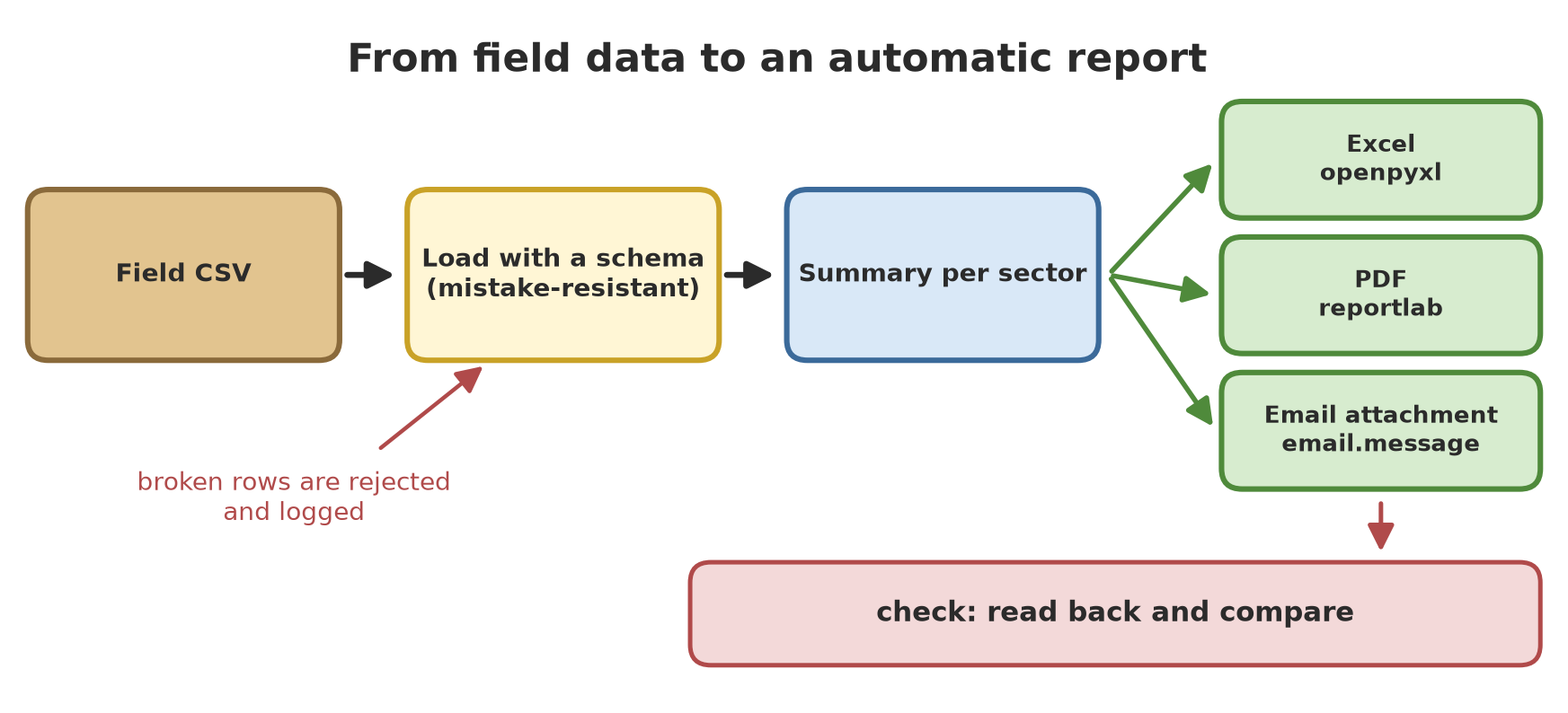
Now the whole of Series B3 works together. The script below: (1) saves the data of five sectors to CSV and deliberately adds one broken row to the fish data, (2) loads it back with a schema (Chapter 14), (3) works out a summary per sector, (4) makes an Excel report (Summary sheet + chart + one sheet per table), (5) makes a PDF report, and (6) builds an email with two attachments (not sent).
11_project_report.py
# Chapter 15 - Project B3: from field CSV to an Excel and PDF report, plus an email (not sent)
import logging
import sys
from email.message import EmailMessage
from pathlib import Path

from openpyxl import Workbook
from openpyxl.chart import BarChart, Reference
from openpyxl.styles import Font, PatternFill

from data_tools import save_csv, load_csv
from core_data import trees, crops, fish, livestock
from report_pdf import make_pdf

logging.basicConfig(stream=sys.stdout, level=logging.WARNING, format="%(levelname)s: %(message)s")
work = Path(__file__).parent / "_tmp" / "project"
work.mkdir(parents=True, exist_ok=True)

# 1. Save the raw data to CSV; a field officer adds one broken row to the fish data
tables = {"trees": trees, "crops": crops, "fish": fish, "livestock": livestock}
for name, rows in tables.items():
    save_csv(work / f"{name}.csv", rows)
with open(work / "fish.csv", "a", newline="", encoding="utf-8") as f:
    f.write("D,tilapia,many,350.0,7.4\n")

# 2. Load it back with a schema (the broken row is rejected)
bool_text = lambda s: {"True": True, "False": False}[s]
schema = {
    "trees": {"species": str, "diameter_cm": float, "height_m": float, "healthy": bool_text, "plot": str},
    "crops": {"crop": str, "block": str, "age_days": int, "yield_kg": float},
    "fish": {"pond": str, "species": str, "count": int, "avg_weight_g": float, "water_ph": float},
    "livestock": {"pen": str, "species": str, "age_months": int, "weight_kg": float},
}
data, rejected = {}, 0
for name in tables:
    data[name], rej = load_csv(work / f"{name}.csv", schema[name])
    rejected += rej

# 3. Work out the summary per sector
biomass = sum(f["count"] * f["avg_weight_g"] / 1000 for f in data["fish"])
summary = [
    ["Sector", "Records", "Measure", "Value"],
    ["Forest", len(data["trees"]), "Mean diameter (cm)",
     round(sum(t["diameter_cm"] for t in data["trees"]) / len(data["trees"]), 1)],
    ["Forest", len(data["trees"]), "Healthy trees", sum(t["healthy"] for t in data["trees"])],
    ["Orchard and field", len(data["crops"]), "Total harvest (kg)", sum(c["yield_kg"] for c in data["crops"])],
    ["Fisheries", len(data["fish"]), "Biomass (kg)", round(biomass, 1)],
    ["Livestock", len(data["livestock"]), "Total weight (kg)", sum(x["weight_kg"] for x in data["livestock"])],
]

# 4. Excel report: Summary sheet + chart + one sheet per table
book = Workbook()
ws = book.active
ws.title = "Summary"
for row in summary:
    ws.append(row)
ws.append([])
ws.append([f"Data rows rejected because they were broken: {rejected}"])
for cell in ws[1]:
    cell.font = Font(bold=True)
    cell.fill = PatternFill("solid", start_color="D7ECCF")
ws.column_dimensions["A"].width = 18
ws.column_dimensions["C"].width = 26
chart = BarChart()
chart.title = "Value per measure (kg)"
chart.y_axis.scaling.min = 0
chart.add_data(Reference(ws, min_col=4, min_row=4, max_row=6), titles_from_data=False)
chart.set_categories(Reference(ws, min_col=3, min_row=4, max_row=6))
ws.add_chart(chart, "F2")
for name, rows in data.items():
    sheet = book.create_sheet(name.capitalize())
    sheet.append(list(rows[0]))
    for r in rows:
        sheet.append(list(r.values()))
book.save(work / "report.xlsx")

# 5. PDF report
pdf_rows = [summary[0]] + [[s, str(n), m, str(v)] for s, n, m, v in summary[1:]]
make_pdf(work / "report.pdf", "Field Inventory Summary", pdf_rows,
         f"Sample numbers. Data rows rejected because they were broken: {rejected}.")

# 6. Email with two attachments (only made, not sent)
message = EmailMessage()
message["Subject"] = "Field inventory summary"
message["From"] = "reporting@sample.example"
message["To"] = "unit-head@sample.example"
message.set_content("The inventory summary is attached in Excel and PDF.")
message.add_attachment((work / "report.xlsx").read_bytes(), maintype="application",
                       subtype="vnd.openxmlformats-officedocument.spreadsheetml.sheet", filename="report.xlsx")
message.add_attachment((work / "report.pdf").read_bytes(), maintype="application",
                       subtype="pdf", filename="report.pdf")

print(f"Rows rejected: {rejected}")
for row in summary[1:]:
    print(f"{row[0]:18} {row[1]:>2}  {row[2]:24} {row[3]}")
print("Report files:", sorted(p.name for p in work.iterdir() if p.suffix in (".xlsx", ".pdf")))
print("Email attachments:", [a.get_filename() for a in message.iter_attachments()], "(not sent yet)")
WARNING: line 5 in fish.csv rejected (ValueError)
Rows rejected: 1
Forest 6 Mean diameter (cm) 39.0
Forest 6 Healthy trees 5
Orchard and field 4 Total harvest (kg) 1030.0
Fisheries 3 Biomass (kg) 1095.4
Livestock 4 Total weight (kg) 1190.0
Report files: ['report.pdf', 'report.xlsx']
Email attachments: ['report.xlsx', 'report.pdf'] (not sent yet)Follow the result:
- The broken row
D,tilapia,many,...is rejected (the count ismany, not a number), and the report records rows rejected: 1. The remaining three ponds are still processed: biomass 1095.4 kg. - The per-sector summary matches Chapter 11: harvest 1030.0 kg, livestock weight 1190.0 kg, mean diameter 39.0 cm; 5 of 6 trees healthy.
- The files
report.xlsxandreport.pdfare made, and the email with both attached is ready, not sent. We also openedreport.xlsxwith LibreOffice (converting it to PDF) to confirm the file is valid and its chart shows up.
An automatic program must not be trusted blindly. The next script reads back the generated reports and compares Excel with PDF:
12_project_check.py
# Chapter 15 - Project B3: checking the generated reports by reading them back (proof, not assumption)
import subprocess
import sys
from pathlib import Path

import pdfplumber
from openpyxl import load_workbook
from pypdf import PdfReader

folder = Path(__file__).parent
work = folder / "_tmp" / "project"
subprocess.run([sys.executable, str(folder / "11_project_report.py")], capture_output=True, check=True)

book = load_workbook(work / "report.xlsx")
print("Excel sheets:", book.sheetnames)
rows = list(book["Summary"].iter_rows(min_row=2, max_row=6, values_only=True))
excel_totals = {row[2]: row[3] for row in rows}
print("Excel - total harvest:", excel_totals["Total harvest (kg)"])
print("Excel - biomass      :", excel_totals["Biomass (kg)"])
print("Excel - fish rows    :", book["Fish"].max_row - 1, "(without the title row)")

reader = PdfReader(work / "report.pdf")
print("PDF   - pages        :", len(reader.pages))
with pdfplumber.open(work / "report.pdf") as pdf:
    table = pdf.pages[0].extract_tables()[0]
pdf_totals = {row[2]: row[3] for row in table[1:]}
print("PDF   - total harvest:", pdf_totals["Total harvest (kg)"])
print("PDF   - biomass      :", pdf_totals["Biomass (kg)"])

# Excel stores 1030.0 as 1030, so compare as numbers, not as text
same = all(float(excel_totals[k]) == float(pdf_totals[k]) for k in ("Total harvest (kg)", "Biomass (kg)"))
print("Excel and PDF consistent:", same)
Excel sheets: ['Summary', 'Trees', 'Crops', 'Fish', 'Livestock']
Excel - total harvest: 1030
Excel - biomass : 1095.4
Excel - fish rows : 3 (without the title row)
PDF - pages : 1
PDF - total harvest: 1030.0
PDF - biomass : 1095.4
Excel and PDF consistent: TrueExcel has five sheets, the fish table holds 3 data rows, and the totals in Excel and PDF are the same. Note one small lesson: Excel stores the total harvest as 1030, while the PDF has the text 1030.0. Comparing the two as text would report “different” though the numbers are equal; we compare them as numbers (float). A check like this is what lets you dare to schedule a report to run by itself.
Exercises
- Change
01_excel_write.py: add a column “Yield per 100 days (kg)” filled by Python (not a formula), namelyyield_kg / age_days * 100, rounded to two decimals. - Use
pandasto read thefish.csvfrom Chapter 14 and writefish.xlsxwith one sheet named “Fish”. Open it withread_exceland print the mean ofavg_weight_g. - Change
11_project_report.pyso that the PDF report also holds a summary table per forest plot (number of trees and mean diameter). - Challenge: write a script that merges the project’s
report.pdfwith a cover PDF you make yourself (one title page) intofull_report.pdf, then check withpypdfthat the first page is the cover.
Chapter Summary
- Excel:
openpyxl(sheets, styles, formulas, charts) andpandas(tables); openpyxl does not calculate formulas. - Word:
python-docxfor headings, paragraphs, and tables. - PDF:
reportlabmakes;pypdfreads text, merges, and splits;pdfplumberpulls tables from machine-generated PDFs. - Email:
email.message.EmailMessagebuilds the message; test against a pretend local SMTP server; never write passwords in code. - An automatic report needs an automatic check: read the result back and compare.
- The complete B3 project: data of five sectors saved, resistant to wrong input, and turned into Excel/PDF reports.
Closing Series B3
You have finished Series B3. Your program can now borrow tools from libraries (Chapter 11), stay up when something goes wrong (Chapter 12), save and read files (Chapter 13), use the standard formats CSV and JSON (Chapter 14), and make Excel and PDF reports automatically (Chapter 15). You also have one complete project: data of forest, orchard, field crops, fisheries, and livestock that is saved, mistake-resistant, and turned into reports.
Congratulations: Basic Level (Volume 1) is complete!
With this chapter, the Basic level is finished. In 15 chapters you travelled from “what is a computer” to writing programs that are useful at work: variables, decisions, loops, data structures, functions, modules, error handling, files, data formats, and document automation. That is a genuine foundation, and many everyday office jobs can already be automated with it.
But see for yourself: our project program is getting bigger, its functions are multiplying, and it is starting to get messy: data and tools are mixed together, and there are copies of the file core_data.py in several chapter folders. The Intermediate level begins with how to organise code so that it stays tidy and safe to change.
Next, in Chapter 16: OOP (object-oriented programming): classes, objects, inheritance, and how to model trees, orchards, ponds, and pens as objects that have their own behaviour.