Chapter 3 — Meet the Terminal: Chatting With Your Computer by Typing
Series B1 — Starting From Zero
Many beginners find the terminal scary: a black window, white text, and supposedly one typo ruins everything. The reality is much tamer. By the end of this chapter you will have made a working folder for learning Python, using the terminal, and you will smile at how “scary” it once seemed.
The terminal is like sending messages
So far you have used the computer by clicking: click a folder, click a file, click a button. The terminal is another way: you type a command, and the computer answers in text. It is like messaging the warehouse worker from Chapter 1: you write a request, they reply.
Why do programmers like the terminal?
- Fast. One typed line can replace a dozen clicks.
- Repeatable. The same command can be used again without repeating the same clicks.
- Used everywhere. Servers, data tools, and nearly all programming tools can be controlled from a terminal.
- Python runs from here. From Chapter 4 on, you will run programs through the terminal.
Opening the terminal
The examples in this book use Windows and a program called PowerShell.
- Windows: press the Start button, type
Terminal(orPowerShell), then press Enter. - macOS: open the Terminal app via Spotlight (Cmd + Space).
- Linux: the Terminal app is usually in the applications menu; the exact way differs between distributions.
The basic commands in this chapter work similarly on all three, but some names and slash directions differ. The book’s examples follow Windows PowerShell.
Reading the “prompt”
When the terminal opens, you see one blinking line waiting for you to type, roughly like this (what you see on your computer will differ):
PS C:\Users\You>This line is the prompt, meaning “the computer is ready for a command”. The important part is C:\Users\You: that is the folder you are currently standing in. Picture yourself standing in front of one drawer; the commands you type work on that drawer.
The terminal always “stands” in one folder. If a command doesn’t work as expected, the first question to ask is: “Which folder am I standing in?”
Remember the nested drawers from Chapter 1? Every command below works on one of those drawers:
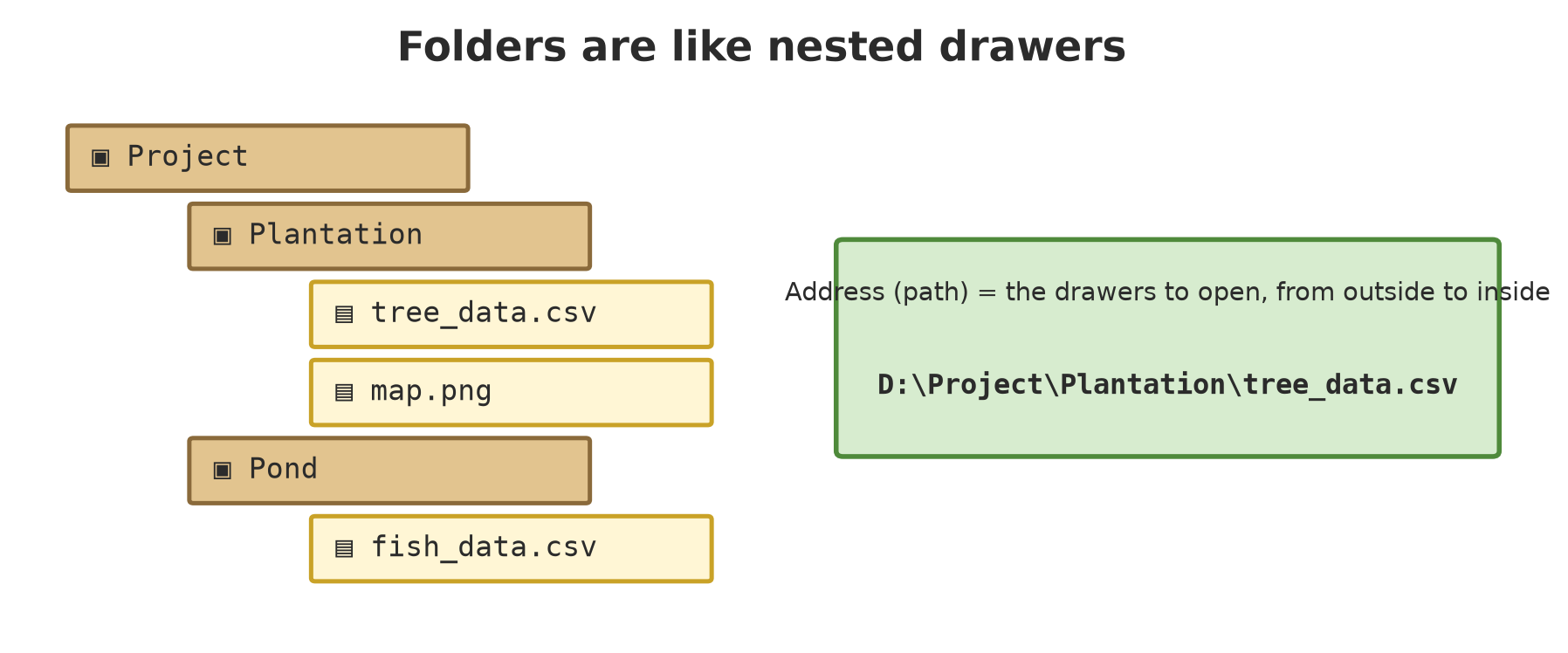
cd command moves between drawers.Six basic commands
Type the command then press Enter. (Anything inside < > is a name you replace yourself; don’t type the < and > signs.)
| Command | Meaning | Analogy |
|---|---|---|
pwd |
Show the folder I’m standing in | “Which drawer am I at?” |
dir |
Show what’s inside this folder | Peeking into the drawer |
cd <folder-name> |
Go into that folder | Opening a deeper drawer |
cd .. |
Go up one level (two dots) | Stepping back out to the outer drawer |
mkdir <folder-name> |
Make a new folder | Adding a new drawer |
cls |
Clear the screen | Wiping the whiteboard (folder contents are not erased) |
Two shortcuts you will often be thankful for. The up arrow repeats the previous command. The Tab key completes folder names: type cd Docu then press Tab, and the full name appears by itself.
Practice: make a learning folder
Let’s make a working folder for this whole book. Type these one by one (press Enter after each line):
cd Documents
mkdir learn-python
cd learn-python
pwd
After the last line, the terminal shows the address of your new folder, ending in learn-python. Congratulations: you just made a folder and went inside it without a single mouse click.
To check, type dir. The folder is still empty, so nothing is listed. This is the folder we will fill with Python programs in Chapter 4.
If your Documents folder is synced with OneDrive, the folder you see in File Explorer may be somewhere other than C:\Users\You\Documents, for example C:\Users\You\OneDrive\Documents. On the author’s computer, both exist. That is fine for learning, as long as you always use the same folder. Write down your pwd result, then open that folder in File Explorer so you know where it really is.
When you mistype: error messages
Try getting it wrong on purpose. Type a folder name that doesn’t exist:
cd DocsThe terminal answers with a message like this (the folder name on your line will differ; in PowerShell 7.6.6 this message is preceded by the command name):
Cannot find path 'C:\Users\You\Docs' because it does not exist.It means: “Can’t find that address because it really doesn’t exist.” Nothing is broken. The message even gives the exact name that couldn’t be found. The cure: type dir to see the correct folder names (for example Documents), then try again.
The terminal has no “Undo” button for delete commands (for example del, rm, or Remove-Item). This book does not teach them yet. A safe rule: never copy commands from the internet that you don’t understand, and if in doubt, ask first. As long as you use the six commands above, nothing can be damaged.
Command stuck, or the terminal seems “frozen”? Press Ctrl + C to cancel the running command.
The word “terminal” really refers to the window, while the program that interprets what you type is called a shell. PowerShell, Command Prompt (cmd), and bash are examples of shells. The commands in this chapter were chosen on purpose because they are the same in many shells, so they are easy to carry over.
Exercises
- Open the terminal and type
pwd. Write down the address that appears, then match it to the folder name you see in File Explorer. - Inside the
learn-pythonfolder, make three folders:ch04,ch05, andproject. Usedirto prove it. Then go back to the parent folder withcd ... - Challenge: make a folder
plantation, go into it, make a folderblock-a, go intoblock-a, then return tolearn-pythonusing only thecd ..command. How many times did you typecd ..?
Chapter Summary
- Terminal = a window for typing commands; the computer answers in text.
- The prompt shows the folder you are standing in.
- Six basic commands:
pwd,dir,cd <folder>,cd ..,mkdir <folder>,cls. - Up arrow repeats a command, Tab completes names, Ctrl + C cancels.
- Error messages say what is wrong; read them slowly, don’t panic.
Next, in Chapter 4: we meet Python, install it, then run your first program in the learn-python folder you just made.