%%{init: {"flowchart": {"diagramPadding": 40}}}%%
flowchart TD
A["Program<br/>error"] --> B["1. Read the LAST line<br/>error type + explanation"]
B --> C["2. Read the line above<br/>line number + ^^^ marker"]
C --> D["3. Fix<br/>the code"]
D --> E["4. Run it<br/>again"]
E -- "still failing" --> B
Chapter 5 — Variables and Data Types: Giving Everything a Name
Series B2 — Python Language Foundations
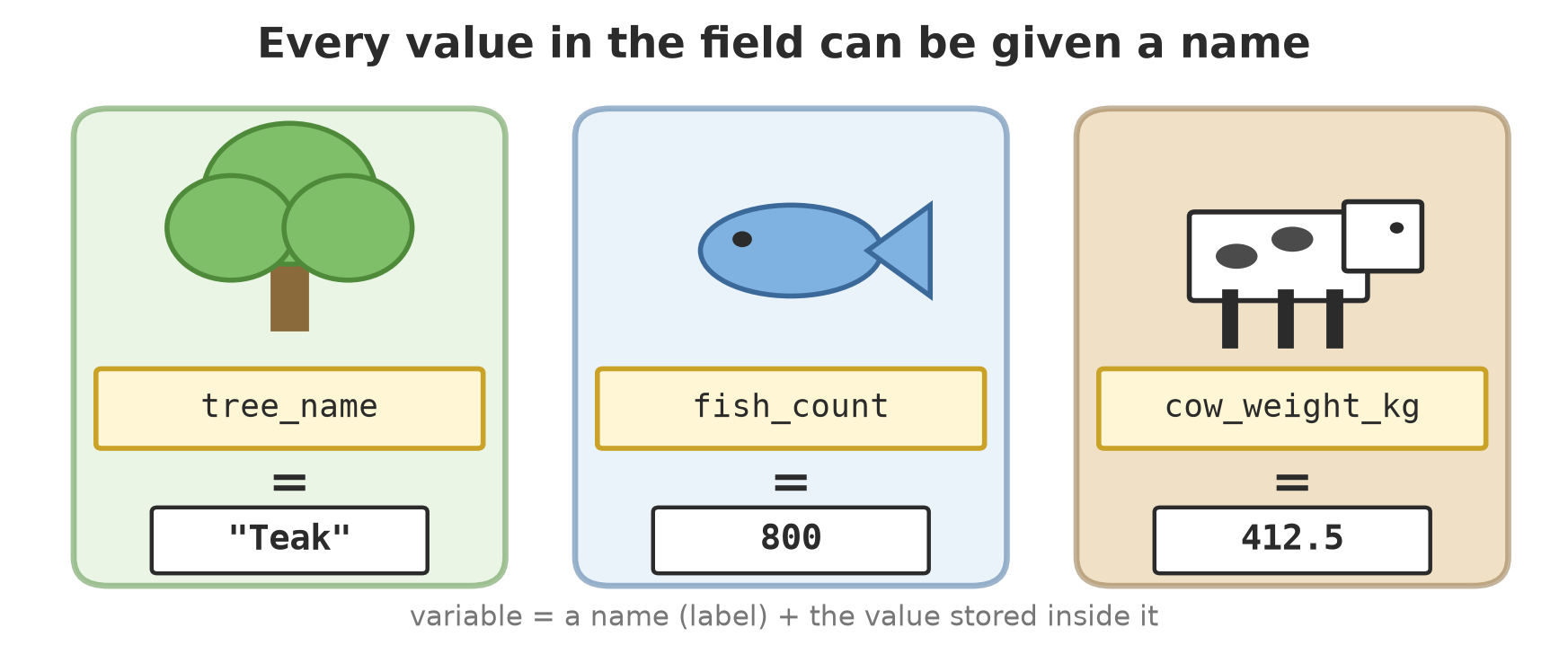
All scripts for this chapter are in the kode/ch05/ folder. On the web version, you can also download them all at once (zip).
A variable is like a label on a sack
Picture the feed store on a farm. There are dozens of sacks that look exactly alike. Without labels, you’d have to open every sack to find out what’s inside. What a hassle!
So you stick on labels: “Cattle Concentrate”, “Fish Pellets”, “Rice Bran”. Now you just read the label.
A variable in Python works exactly like that. A variable is a name you attach to a value, so you can easily call that value up again later.
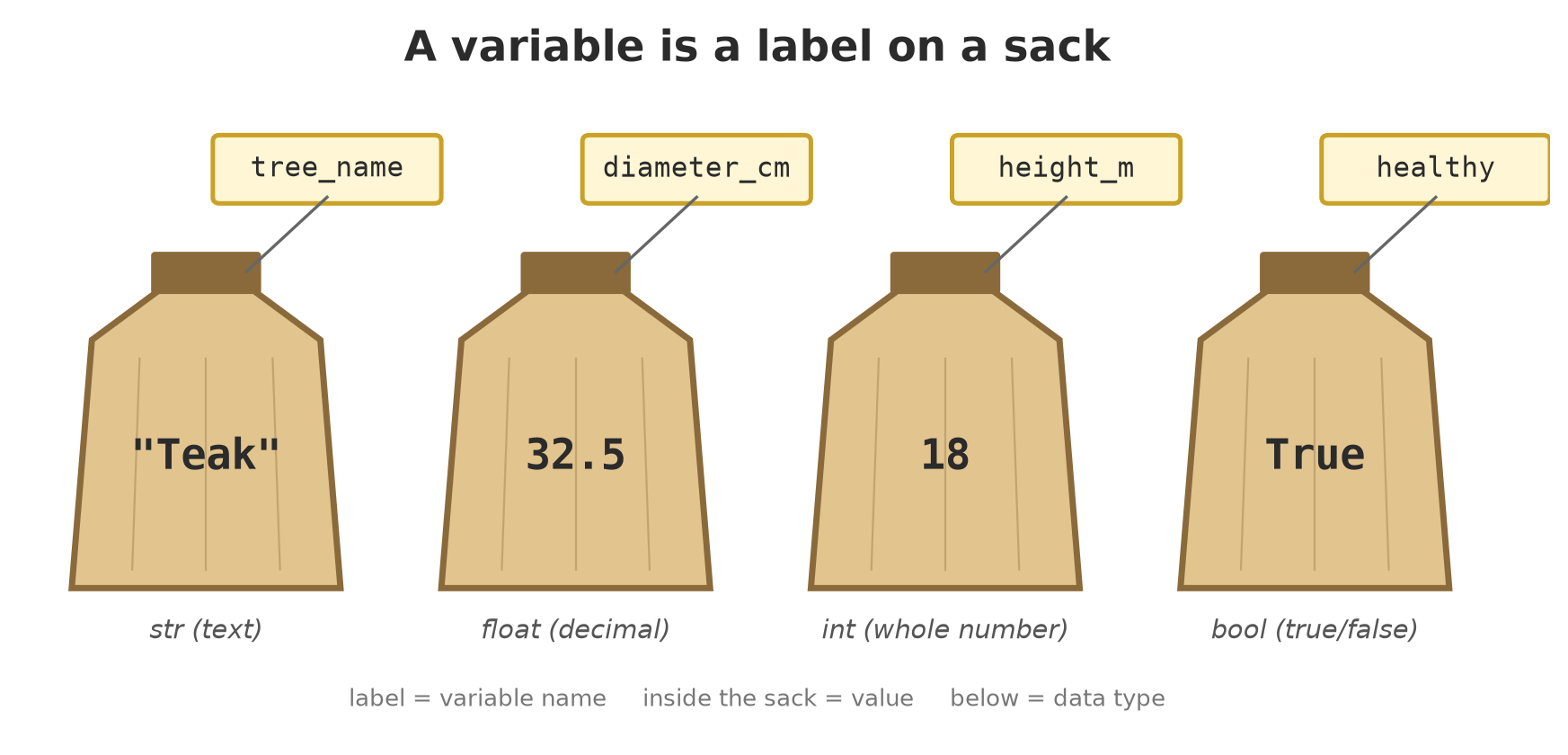
01_variables.py
# Chapter 5 - Creating variables: putting a "label" on a value
tree_name = "Teak"
diameter_cm = 32.5
height_m = 18
healthy = True
print(tree_name, diameter_cm, height_m, healthy)
The result:
Teak 32.5 18 TrueThe = sign here does not mean “equals” as in math class. Read it as “store into”: store “Teak” into tree_name.
NoteREMEMBER
In Python, = means store. To compare whether two values are equal, you use == (two equals signs). That’s covered in Chapter 6.
Naming rules (so Python doesn’t sulk)
Python is a bit picky about variable names. Here are the rules:
- Letters, digits, and the underscore
_are allowed. - A name can’t start with a digit.
1treeis rejected,tree1is fine. - No spaces. Use underscores:
cow_weight, notcow weight. - Upper and lower case are different.
Weightandweightare two different variables.
TipTIP
Choose names that describe the contents, including the unit: diameter_cm, height_m, avg_weight_g. Three months from now, you (or your colleague) will be grateful not to have to guess whether d = 32.5 means centimetres, inches, or the tree’s age.
Four data types you’ll meet every day
Every value in Python has a type, meaning the kind of data it is. Python can tell you the type with the type() function:
02_data_types.py
# Chapter 5 - Checking data types with type()
tree_name = "Teak"
diameter_cm = 32.5
height_m = 18
healthy = True
print(type(tree_name))
print(type(diameter_cm))
print(type(height_m))
print(type(healthy))
<class 'str'>
<class 'float'>
<class 'int'>
<class 'bool'>| Type | Full name | What it holds | Field example |
|---|---|---|---|
str |
string (text) | Letters, words, sentences; always in quotes | "Teak", "Pond A", "Bali cattle" |
int |
integer (whole number) | Numbers without a decimal point | 18 trees, 1250 fish |
float |
decimal number | Numbers with a decimal point | 32.5 cm, 85.4 grams |
bool |
boolean (true/false) | Only True or False |
healthy = True, harvested = False |
WarningWARNING
Python uses a dot for decimals, never a comma: write 32.5, not 32,5. If your country writes decimals with a comma, this is one of the most common beginner traps.
Printing neat sentences with f-strings
The easiest way to mix text and numbers is an f-string: put the letter f before the opening quote, then place variables inside curly braces { }.
03_fstring.py
# Chapter 5 - Printing neat sentences with f-strings
fish_count = 1250
avg_weight_g = 85.4
print(f"Pond A holds {fish_count} fish, average weight {avg_weight_g} grams.")
total_kg = fish_count * avg_weight_g / 1000
print(f"Estimated harvest: {total_kg:.1f} kg")
Pond A holds 1250 fish, average weight 85.4 grams.
Estimated harvest: 106.8 kgNotice {total_kg:.1f}. The code :.1f means “show one digit after the decimal point”. Without it, Python may print a long number that makes your report look messy.
A classic trap: numbers that are really text
Suppose you ask the user to type a cow’s weight, then want to add 10 kg:
04_input_wrong.py
# Chapter 5 - The trap: input() always returns text (this example fails ON PURPOSE)
weight = input("Cow weight (kg): ")
print(weight + 10)
You type 350, and then… an error:
Cow weight (kg): 350
Traceback (most recent call last):
  File "04_input_wrong.py", line 3, in <module>
    print(weight + 10)
          ~~~~~~~^~~~
TypeError: can only concatenate str (not "int") to str
Relax, your computer isn’t broken. Let’s read the message slowly, from the bottom up:
- The last line is the heart of the problem:
TypeError. It means the types don’t match. Python can only join text (str) to text, not to a number (int). - The lines above it show where the problem is: line 3, right at
weight + 10(see the~~~^~~~marker).
The cause: input() always gives you text, even when what you typed is a number. So weight holds "350" (text), not 350 (a number).
The fix is to turn that text into a number with float():
05_input_fixed.py
# Chapter 5 - The fix: turn text into a number with float()
weight = float(input("Cow weight (kg): "))
print("Target next month:", weight + 10, "kg")
Cow weight (kg): 350
Target next month: 360.0 kg
CautionTECHNICAL STUFF (feel free to skip)
Why does it show 360.0 instead of 360? Because float() produces a decimal number, and decimal numbers are always shown with a dot. If you’re sure the weight is always whole, use int(). But careful: int("350.5") fails, because that text isn’t a whole number.
A typo? Python lends a hand
Python 3.14 is quite kind about typos:
06_typo.py
# Chapter 5 - A typo in a variable name (this example fails ON PURPOSE)
diameter_cm = 32.5
print(diamter_cm)
Traceback (most recent call last):
File "06_typo.py", line 3, in <module>
print(diamter_cm)
^^^^^^^^^^
NameError: name 'diamter_cm' is not defined. Did you mean: 'diameter_cm'?NameError means Python doesn’t recognise that name. The last sentence even guesses what you meant: “Did you mean: ‘diameter_cm’?”
TipTIP
Make a habit of reading error messages to the very last line. Python often hands you the answer.
Running Project B2: your first field data
Now let’s put it all together. Record one piece of data from each sector:
07_farm_project.py
# Chapter 5 - Running project B2: first field data

# Forest
tree_species = "Meranti"
tree_diameter_cm = 45.2

# Fisheries
pond_name = "Pond B"
fish_count = 800

# Livestock
animal_name = "Limousin cattle"
animal_weight_kg = 512.5

print(f"{tree_species} tree: diameter {tree_diameter_cm} cm")
print(f"{pond_name}: {fish_count} fish")
print(f"{animal_name}: {animal_weight_kg} kg")
Meranti tree: diameter 45.2 cm
Pond B: 800 fish
Limousin cattle: 512.5 kgIn Chapter 9, we’ll gather these scattered values into a single container (lists and dicts), so they can hold hundreds of trees, ponds, and animals at once.
Exercises
- Create variables for one rice field: the rice variety (text), area in hectares (decimal), plant age in days (whole number), and whether it has been fertilised (true/false). Print all four with an f-string.
- Ask the user to type how many eggs were collected today, then print the total for a week (times 7). Don’t forget the
input()trap! - Challenge: compute the area of a tree crown with a diameter of 6.4 metres (formula: 3.14 × r × r), and display it with two digits after the decimal point.
Chapter Summary
- A variable = a name label for a value.
=means store into. - Four main types:
str(text),int(whole number),float(decimal),bool(true/false). - Decimals use a dot, not a comma.
- An f-string (
f"...{variable}...") is the easiest way to print text mixed with numbers. input()always returns text. Convert it withint()orfloat()before calculating.- Read error messages from the last line.
Next, in Chapter 6: calculating and comparing. How does Python know whether a cow has reached its target weight?