Chapter 41 — Automation and Scripting: Let Python Work by Itself
Series I5 — First Applications: Web, Maps, and Dashboards
All scripts for this chapter are in the kode/ch41/ folder. On the web version, you can also download them all at once (zip).
In Chapters 36 to 40 you built web applications and maps. Now imagine a repeating job: every Monday morning someone collects the numbers from each business unit, tidies them, and writes a report. That is like an officer who goes around every week with a notebook. Python can be an officer who never forgets and never gets bored. A simple rule of thumb: when you do the same thing for the third time, write a script.
This chapter has two big parts. First, automation: running programs, tidying files, checking services, and scheduling it all. Second, web scraping: reading data from web pages. For the second there is a hard rule in this book: we only practise on self-made sites running on our own computer, and we discuss the ethics first.
subprocess: calling another program
Python has the subprocess module to run another program (the child process) and wait for its result. It is like asking an assistant to do something and report back.
01_subprocess_basics.py
# Chapter 41 - subprocess: running another program from Python
import subprocess
import sys

# sys.executable = path of the Python we are using; "-c" = run a short piece of code
result = subprocess.run(
    [sys.executable, "-c", "print('hello from the child process')"],
    capture_output=True, text=True, encoding="utf-8",
)
print("exit code   :", result.returncode)
print("stdout      :", result.stdout.strip())
print("stderr empty:", result.stderr == "")

# Arguments are passed as a LIST, one item per word (no shell)
command = [sys.executable, "-c", "import sys; print(' + '.join(sys.argv[1:]))", "rice", "corn"]
result = subprocess.run(command, capture_output=True, text=True, encoding="utf-8")
print("arguments received:", result.stdout.strip())
exit code : 0
stdout : hello from the child process
stderr empty: True
arguments received: rice + cornsys.executableis the path of the Python being used, so the child uses the same Python.-cmeans “run this short piece of code”.capture_output=Truecatches what the child prints (stdout) and its complaints (stderr).text=Truemakes the result text instead of bytes.- The exit code (
returncode) 0 means success. Any other number means failure. - Arguments are sent as a list, one item per word. According to Python’s official documentation, this way the module itself takes care of quotes and spaces in file names.
Do not be tempted to use shell=True with text that comes from a user or a file. Python’s documentation warns that with shell=True it is you who must secure every space and special character; otherwise people can slip in other commands (shell injection). With a list, special characters are passed to the child as they are, and that is safe.
A child program can fail in three ways. All three can be handled:
02_subprocess_errors.py
# Chapter 41 - subprocess: three ways to fail and how to handle them
import subprocess
import sys

# 1. The child program ends with an error; check=True turns that into an exception
try:
    subprocess.run([sys.executable, "-c", "raise SystemExit(3)"], check=True)
except subprocess.CalledProcessError as e:
    print("1. exit code is not 0:", e.returncode)

# 2. The child program takes too long; timeout stops the waiting
try:
    subprocess.run([sys.executable, "-c", "import time; time.sleep(5)"], timeout=0.5)
except subprocess.TimeoutExpired:
    print("2. passed the 0.5 second limit, child process stopped")

# 3. The program does not exist at all
try:
    subprocess.run(["program-that-does-not-exist-123"])
except FileNotFoundError:
    print("3. program not found")
1. exit code is not 0: 3
2. passed the 0.5 second limit, child process stopped
3. program not foundcheck=True turns a non-zero exit code into a CalledProcessError exception. timeout stops a child that takes too long and raises TimeoutExpired. A missing program raises FileNotFoundError. A good automation script always thinks about all three, because nobody is watching the screen when the script runs at three in the morning.
File automation: tidying a folder
A classic chore: the downloads folder fills up with all kinds of files. This script moves each file to a folder according to its extension.
03_file_automation.py
# Chapter 41 - Automating a daily chore: tidying a downloads folder by file type
import shutil
from pathlib import Path

work = Path(__file__).parent / "_tmp" / "downloads"
shutil.rmtree(work, ignore_errors=True)
work.mkdir(parents=True)
for name in ["harvest_a.csv", "harvest_b.csv", "pond_map.png", "report_may.pdf", "notes.txt", "orchard_photo.png"]:
    (work / name).write_text("sample content", encoding="utf-8")

FOLDER_MAP = {".csv": "data", ".png": "images", ".pdf": "documents"}

moved = 0
for file in sorted(work.iterdir()):
    if not file.is_file():
        continue
    target = work / FOLDER_MAP.get(file.suffix, "other")
    target.mkdir(exist_ok=True)
    shutil.move(str(file), str(target / file.name))
    moved += 1

print("files moved:", moved)
for folder in sorted(p for p in work.iterdir() if p.is_dir()):
    print(f"{folder.name:10}", sorted(p.name for p in folder.iterdir()))
files moved: 6
data ['harvest_a.csv', 'harvest_b.csv']
documents ['report_may.pdf']
images ['orchard_photo.png', 'pond_map.png']
other ['notes.txt']Notice two good habits. First, the script works in its own _tmp folder, not in your real folders, so it is safe to try. Second, FOLDER_MAP.get(file.suffix, "other") provides a fallback folder for unknown types (notes.txt goes to other), so no file is left behind.
Before moving or deleting files automatically, first run a version that only prints what it would do. Once the list looks right, swap in the real commands.
Infrastructure automation: checking services
Infrastructure is all the “machines behind the scenes” that run your application: servers, web services, databases, disk space. Infrastructure automation means writing scripts that check and look after them. The most basic example is a health check: ask for the home page, then see whether the answer is healthy.
04_health_check.py
# Chapter 41 - Infrastructure automation: a service health checker
import shutil
import urllib.error
import urllib.request

from local_site import LocalSite


def check(address):
    """Returns a status text: 'healthy', 'HTTP error <code>', or 'not connected'."""
    try:
        with urllib.request.urlopen(address, timeout=2) as response:
            return "healthy" if response.status == 200 else f"status {response.status}"
    except urllib.error.HTTPError as e:
        return f"HTTP error {e.code}"
    except urllib.error.URLError:
        return "not connected"


with LocalSite() as site:
    address = site.url
    print("home page      :", check(address + "/"))
    print("missing page   :", check(address + "/does-not-exist"))

# After the `with` block the server is switched off: the checker must notice
print("after shutdown :", check(address + "/"))

# Another common check: free disk space (only True/False is printed to keep the output stable)
print("disk has room  :", shutil.disk_usage(".").free > 100 * 1024 * 1024)
home page : healthy
missing page : HTTP error 404
after shutdown : not connected
disk has room : TrueThe server being checked here is a small server we made ourselves on this computer (the helper module local_site.py, explained in the scraping part). Three different results deserve to be told apart: healthy (code 200), HTTP error (the server is alive but the page does not exist, 404), and not connected (the server is down). In practice, a script like this is scheduled every few minutes and sends an alert when the result is not “healthy”. Sending alerts (email or messages) is not practised here because it needs services outside this computer.
Scheduling scripts
An automation script is only useful when it runs by itself at the right time. Python does not schedule itself: that job is handed to the operating system’s scheduler.
| System | Scheduler | How |
|---|---|---|
| Windows | Task Scheduler | the schtasks /create command, or the graphical Task Scheduler app |
| Linux and macOS | cron | a line in the crontab file (crontab -e) |
05_schedule_text.py
# Chapter 41 - Scheduling a script: the commands are ONLY printed, never run
from pathlib import Path

# Windows Task Scheduler: one task = one program, so we wrap the call in a .bat file
bat = "\n".join([
    "@echo off",
    r"C:\project\.venv\Scripts\python.exe C:\project\weekly_report.py",
    "",
])
target = Path(__file__).parent / "_tmp" / "run_report.bat"
target.parent.mkdir(exist_ok=True)
target.write_text(bat, encoding="ascii")
print("contents of run_report.bat:")
print(bat)

print("Windows command (run it yourself in your terminal):")
print(r"schtasks /create /tn WeeklyReport /tr C:\project\run_report.bat /sc weekly /d MON /st 07:00")

# cron (Linux/macOS): five time columns, then the command
cron = "0 7 * * 1 /home/you/project/.venv/bin/python /home/you/project/weekly_report.py"
print("\ncrontab line (paste it through `crontab -e`):")
print(cron)

LIMITS = [("minute", 0, 59), ("hour", 0, 23), ("day of month", 1, 31), ("month", 1, 12), ("weekday", 0, 6)]


def check_cron(line):
    """A simple checker: only '*' or one number per column, and the number must be in range."""
    columns = line.split()[:5]
    for text, (name, low, high) in zip(columns, LIMITS):
        if text != "*" and not (text.isdigit() and low <= int(text) <= high):
            return f"column {name} is wrong: {text}"
    return "the five time columns look sensible"


print("\nCheck:", check_cron(cron))
print("Wrong example:", check_cron("0 25 * * 1 command"))
contents of run_report.bat:
@echo off
C:\project\.venv\Scripts\python.exe C:\project\weekly_report.py
Windows command (run it yourself in your terminal):
schtasks /create /tn WeeklyReport /tr C:\project\run_report.bat /sc weekly /d MON /st 07:00
crontab line (paste it through `crontab -e`):
0 7 * * 1 /home/you/project/.venv/bin/python /home/you/project/weekly_report.py
Check: the five time columns look sensible
Wrong example: column hour is wrong: 25This code only prints the commands. The scheduling commands are not run in this book because they change your computer’s settings. You run them yourself when you are ready. The explanation, according to the official documentation:
- Windows (
schtasks):/tnnames the task,/trsets the program to run,/sc weeklymeans weekly,/d MONMonday,/st 07:00the start time (24-hour format). One task runs only one program, so the documentation suggests a batch file (.bat) to run several steps. That is why we wrap Python inrun_report.bat. - cron: five time columns in order: minute (0-59), hour (0-23), day of month (1-31), month (1-12), day of week (0-6, with 0 = Sunday). So
0 7 * * 1means 07:00 every Monday. The*means “every value”.
Three scheduling habits that will save you: (1) use full paths to Python and to the script, because the scheduler does not run from your folder; (2) always write a log to a file, because there is no screen to read; (3) try it by hand first before scheduling it.
Web scraping: ethics first, code second
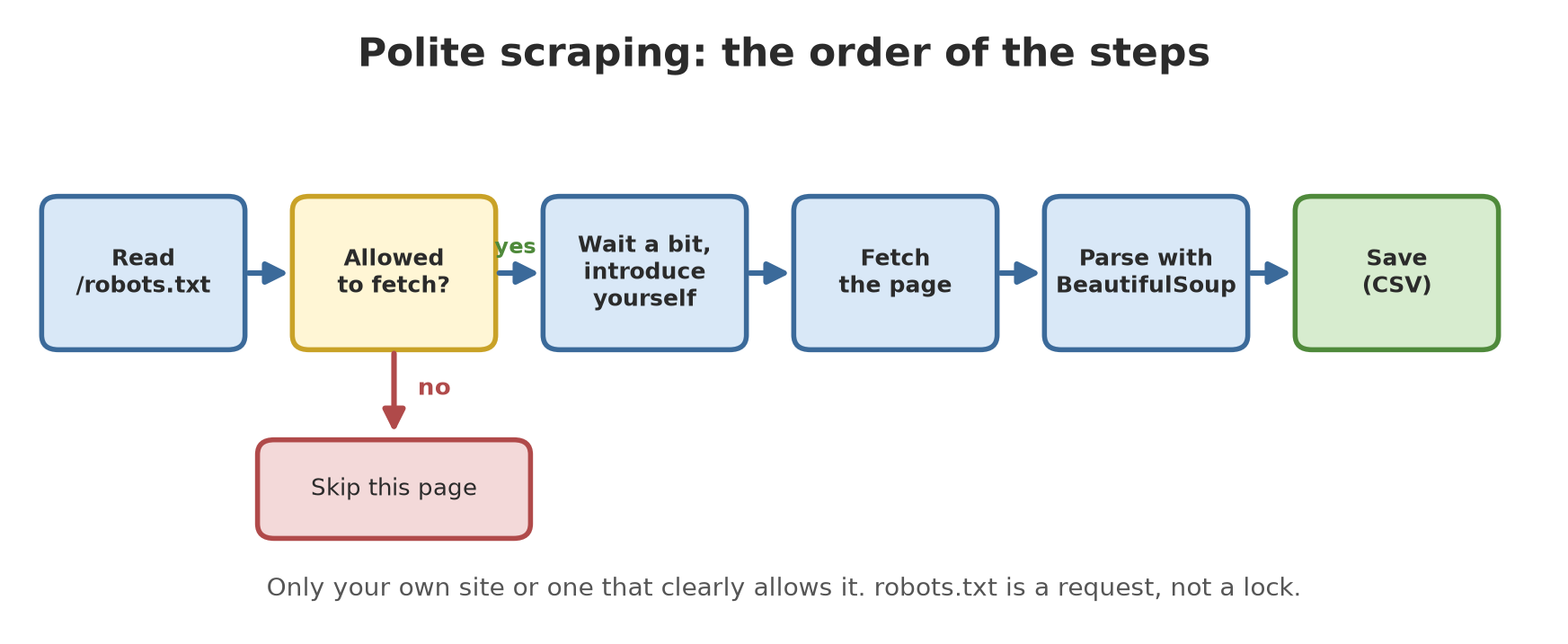
Web scraping is reading web pages with a program, then picking out the useful parts (for example the contents of a table). The technique is easy. What is hard, and far more important, is behaving properly. Before writing a single line, hold on to these rules:
| Question | What you must do |
|---|---|
| Is there an official way? | Look for an API or an official data download first. That is always better than scraping. |
What does robots.txt say? |
Read /robots.txt on that site and obey the parts that forbid. |
| What do the terms of use say? | Read the site’s terms of service. If they forbid scraping, do not do it. |
| How often do I ask? | Leave a pause between requests and do not flood the server (rate limit). |
| Who am I to the server? | Introduce yourself with an honest User-Agent that can be contacted. |
| What is the data? | Be careful with personal data and copyright. Data you may read is not always data you may share. |
robots.txt is described in the RFC 9309 standard (the Robots Exclusion Protocol). The standard stresses that its rules are not a form of access authorization: it is a polite request obeyed by well-behaved crawlers, not a lock. That means nothing stops your program from breaking it. What stops it is your attitude. The standard also does not define Crawl-delay; that is an extra habit understood by some crawlers.
The rule of this book: every scraping exercise here runs against self-made HTML pages served by a server on your computer (127.0.0.1, an address only this computer can reach). We do not fetch pages from any real site. That is on purpose: we can practise fully without burdening anyone.
The practice site is made by the helper module local_site.py (in the script folder): one home page listing the sectors, five sector pages that each hold a table of business units, one “internal” page that robots.txt forbids, and the robots.txt file itself. The data is our sample business-unit data, all numbers fictional.
BeautifulSoup: reading HTML
BeautifulSoup (the beautifulsoup4 package) turns HTML text into a tree you can walk through. Python’s built-in parser is called html.parser; there are also lxml and html5lib, installed separately.
06_bs4_basics.py
# Chapter 41 - BeautifulSoup: reading an HTML page (a self-made site on your own computer)
import urllib.request

from bs4 import BeautifulSoup

from local_site import LocalSite

with LocalSite() as site:
    with urllib.request.urlopen(site.url + "/sector/pond.html", timeout=5) as r:
        html = r.read().decode("utf-8")

print("--- first 8 lines of the HTML ---")
print("\n".join(html.splitlines()[:8]))
print("...")

soup = BeautifulSoup(html, "html.parser")
print("\npage title :", soup.title.get_text())
print("main heading:", soup.h1.get_text())

# CSS selector: find every table row that has a data-id attribute
total = 0.0
for tr in soup.select("table#unit tbody tr[data-id]"):
    cells = [td.get_text(strip=True) for td in tr.find_all("td")]
    print(tr["data-id"], cells, "lat =", tr["data-lat"])
    total += float(tr.select_one("td.value").get_text())
print("total value :", total)

# Trap: find() returns None when nothing matches
table = soup.find("table", id="no-such-table")
print("\ntable we looked for:", table)
try:
    table.find_all("tr")
except AttributeError as e:
    print("error:", e)
--- first 8 lines of the HTML ---
<!doctype html>
<html lang="en">
<head><meta charset="utf-8"><title>Sector pond</title></head>
<body>
<h1>Sector pond</h1>
<table id="unit">
<thead><tr><th>Unit</th><th>Kind</th><th>Value</th><th>Unit of measure</th></tr></thead>
<tbody>
...
page title : Sector pond
main heading: Sector pond
L1 ['Pond A', 'tilapia', '432.4', 'kg'] lat = -6.644
L2 ['Pond B', 'catfish', '380.0', 'kg'] lat = -6.6452
L3 ['Pond C', 'tilapia', '295.5', 'kg'] lat = -6.6466
total value : 1107.9
table we looked for: None
error: 'NoneType' object has no attribute 'find_all'Walk through the result:
- The first eight lines of HTML show the shape of the page: a
<table id="unit">with a head and a body. select("table#unit tbody tr[data-id]")uses a CSS selector: “rows inside the body of theunittable that have adata-idattribute”.select()returns a list of all matches;select_one()only the first.get_text(strip=True)takes the text without extra spaces. Attributes such asdata-latare read like a dictionary:tr["data-lat"].- The total of the three ponds is 432.4 + 380.0 + 295.5 = 1107.9 kg, matching the output.
- Trap: when the element you look for is missing,
find()returnsNone(whilefind_all()returns an empty list). Calling a method onNoneraisesAttributeError. That is why good code checks forNoneand complains clearly when the page changes shape.
robots.txt in code
Python has a built-in robots.txt reader: urllib.robotparser.
07_robots_ethics.py
# Chapter 41 - robots.txt: reading a site's rules before fetching pages
import urllib.request
import urllib.robotparser

from local_site import LocalSite

AGENT = "BookPythonBot/1.0"

with LocalSite() as site:
    with urllib.request.urlopen(site.url + "/robots.txt", timeout=5) as r:
        content = r.read().decode("utf-8")
    print("contents of robots.txt:")
    print(content)

    robot = urllib.robotparser.RobotFileParser()
    robot.parse(content.splitlines())
    for path in ["/", "/sector/pond.html", "/private/notes.html"]:
        allowed = robot.can_fetch(AGENT, site.url + path)
        print(f"{path:24} allowed to fetch? {allowed}")
    print("Crawl-delay:", robot.crawl_delay(AGENT), "second(s)")

    # robots.txt is only a request, not a lock: the server still answers if we force it
    with urllib.request.urlopen(site.url + "/private/notes.html", timeout=5) as r:
        print("\nif forced, the server answers:", r.status, "(we must STILL NOT do it)")
contents of robots.txt:
User-agent: *
Disallow: /private/
Crawl-delay: 1
/ allowed to fetch? True
/sector/pond.html allowed to fetch? True
/private/notes.html allowed to fetch? False
Crawl-delay: 1 second(s)
if forced, the server answers: 200 (we must STILL NOT do it)can_fetch(agent, address) answers whether our agent may fetch that address. The /private/ page is forbidden (False). crawl_delay() returns the pause the site asks for (1 second), or None when there is none. Notice the last line: the server still answers 200 if we force it. That is exactly the RFC 9309 message from above: robots.txt is not a lock, so obedience is entirely up to us.
A polite scraper
Now we combine everything into one class: read robots.txt first, pause, and introduce itself.
fetcher.py
# Chapter 41 - Helper module: a polite page fetcher (obeys robots.txt, waits, introduces itself)
import time
import urllib.error
import urllib.request
import urllib.robotparser

from bs4 import BeautifulSoup

AGENT = "BookPythonBot/1.0 (learning example; own local site)"


def read_table(html):
    """Reads the unit table from one sector page into a list of dicts."""
    soup = BeautifulSoup(html, "html.parser")
    table = soup.find("table", id="unit")
    if table is None:                       # the page changed shape: do not silently get it wrong
        raise ValueError("table #unit not found")
    result = []
    for tr in table.select("tbody tr"):
        cells = [td.get_text(strip=True) for td in tr.find_all("td")]
        result.append({
            "id": tr["data-id"], "unit": cells[0], "kind": cells[1],
            "lat": float(tr["data-lat"]), "lon": float(tr["data-lon"]),
            "value": float(cells[2]), "uom": cells[3],
        })
    return result


class PoliteFetcher:
    def __init__(self, base, agent=AGENT, default_delay=1.0, timeout=5):
        self.base, self.agent, self.timeout = base, agent, timeout
        self.refused = []                   # addresses not fetched because of robots.txt
        self._last = 0.0
        self.robot = urllib.robotparser.RobotFileParser()
        text = self._download("/robots.txt")
        self.robot.parse(text.splitlines() if text else [])
        # Delay: follow Crawl-delay if present (a custom, not part of the standard), otherwise the default
        self.delay = self.robot.crawl_delay(agent) or default_delay

    def _download(self, path):
        request = urllib.request.Request(self.base + path, headers={"User-Agent": self.agent})
        try:
            with urllib.request.urlopen(request, timeout=self.timeout) as r:
                return r.read().decode("utf-8")
        except urllib.error.HTTPError:
            return ""

    def fetch(self, path):
        """Returns the HTML, or None if robots.txt forbids it."""
        if not self.robot.can_fetch(self.agent, self.base + path):
            self.refused.append(path)
            return None
        wait = self.delay - (time.monotonic() - self._last)
        if wait > 0:
            time.sleep(wait)
        try:
            return self._download(path)
        finally:
            self._last = time.monotonic()
Important points in this class:
- An honest User-Agent:
BookPythonBot/1.0 (learning example; own local site). On a real site, include a way to contact you. self.delay: uses the site’sCrawl-delayif there is one, otherwise 1 second.fetch()refuses addresses thatrobots.txtforbids (recorded inrefused) and waits until the pause is over before asking again.read_table()raisesValueErrorwhen the table is not found.
The script that uses it:
08_polite_scraper.py
# Chapter 41 - A polite scraper: obeys robots.txt, waits between requests, introduces itself
import csv
from pathlib import Path

from bs4 import BeautifulSoup

from fetcher import PoliteFetcher, read_table
from local_site import LocalSite
from unit_data import read_units

with LocalSite() as site:
    bot = PoliteFetcher(site.url)
    print("delay used:", bot.delay, "second")

    index = BeautifulSoup(bot.fetch("/"), "html.parser")
    links = [a["href"] for a in index.select("#menu a")]
    print("links on the home page:", len(links))

    everything = []
    for path in links:
        html = bot.fetch(path)
        if html is None:
            print("skipped (robots.txt forbids it):", path)
            continue
        everything += read_table(html)
    log = list(site.log)

out = Path(__file__).parent / "_tmp" / "units_scraped.csv"
out.parent.mkdir(exist_ok=True)
with open(out, "w", encoding="utf-8", newline="") as f:
    writer = csv.DictWriter(f, fieldnames=list(everything[0]))
    writer.writeheader()
    writer.writerows(everything)

print("scraped rows:", len(everything))
print("same as the source data:", everything == [{k: u[k] for k in everything[0]} for u in read_units()])
print("requests that reached the server:", len(log))
print("forbidden pages requested       :", [p for p, _ in log if p.startswith("/private")])
print("self-introduction (User-Agent)  :", sorted({ua for _, ua in log}))
delay used: 1 second
links on the home page: 6
skipped (robots.txt forbids it): /private/notes.html
scraped rows: 15
same as the source data: True
requests that reached the server: 7
forbidden pages requested : []
self-introduction (User-Agent) : ['BookPythonBot/1.0 (learning example; own local site)']Let us check the numbers. The home page has 6 links: five sectors and one internal page. The internal one is skipped because it is forbidden. The result is 15 rows, exactly equal to the source data (True). The server received 7 requests: 1 for robots.txt, 1 for the home page, and 5 for the sector pages. The list of forbidden pages requested is empty, and our self-introduction is honestly recorded on the server.
This script waits 1 second before each request, so it runs for a few seconds. That is on purpose and not slowness: it is the rate limit. On real sites, a reasonable pause is often longer, and large-scale scraping should be allowed in writing by the site owner.
Scrapy: a framework for big scraping jobs
Scrapy is a complete crawling framework: it manages the queue of addresses, pauses, concurrency, robots.txt obedience, and saving results. If BeautifulSoup is a knife, Scrapy is a small factory. For one or two pages BeautifulSoup is enough; for hundreds of pages on a routine, Scrapy is tidier.
| BeautifulSoup | Scrapy | |
|---|---|---|
| Nature | HTML reading library | full crawling framework |
| Fetches pages? | no (use urllib or httpx) |
yes |
Pause and robots.txt |
you write it | settings (DOWNLOAD_DELAY, ROBOTSTXT_OBEY) |
| Good for | small jobs | large, repeating crawl projects |
Scrapy 2.19.0 is installed on the author’s computer through alat/pasang.py for Python 3.14, and the script below ran successfully. (On your computer the installation is pip install scrapy.) Here is a small spider (crawler):
09_scrapy_lab.py
# Chapter 41 - Scrapy: a scraping framework, run against a self-made local site
import json
from pathlib import Path

import scrapy
from scrapy.crawler import CrawlerProcess

from local_site import LocalSite

OUT = Path(__file__).parent / "_tmp" / "scrapy_units.json"
OUT.parent.mkdir(exist_ok=True)


class UnitLab(scrapy.Spider):
    name = "unit_lab"

    def __init__(self, base, **kw):
        super().__init__(**kw)
        self.base = base

    async def start(self):
        yield scrapy.Request(self.base + "/")

    def parse(self, response):
        # the menu has 5 sector links + 1 internal link that robots.txt forbids
        for a in response.css("#menu a"):
            yield response.follow(a, callback=self.parse_sector)

    def parse_sector(self, response):
        for tr in response.css("table#unit tbody tr"):
            yield {
                "id": tr.attrib["data-id"],
                "unit": tr.css("td:nth-child(1)::text").get(),
                "value": float(tr.css("td.value::text").get()),
            }


with LocalSite() as site:
    process = CrawlerProcess(settings={
        "USER_AGENT": "BookPythonBot/1.0 (learning example; own local site)",
        "ROBOTSTXT_OBEY": True,
        "DOWNLOAD_DELAY": 1,
        "CONCURRENT_REQUESTS_PER_DOMAIN": 1,
        "LOG_LEVEL": "ERROR",
        "FEEDS": {str(OUT): {"format": "json", "overwrite": True}},
    })
    crawler = process.create_crawler(UnitLab)
    process.crawl(crawler, base=site.url)
    process.start()
    stats = crawler.stats.get_stats()

items = json.loads(OUT.read_text(encoding="utf-8"))
print("items collected         :", len(items))
print("first item (by id)      :", sorted(items, key=lambda x: x["id"])[0])
print("forbidden by robots.txt :", stats.get("robotstxt/forbidden"))
print("pages fetched (200)     :", stats.get("downloader/response_status_count/200"))
items collected : 15
first item (by id) : {'id': 'D1', 'unit': 'Pen 1', 'value': 350.0}
forbidden by robots.txt : 1
pages fetched (200) : 7How to read it:
start()gives the starting address.parse()receives the home page and follows each menu link withresponse.follow.parse_sector()yields one item (a dictionary) for each table row.- The settings in
CrawlerProcesscarry our ethics:ROBOTSTXT_OBEYturns onrobots.txtobedience (the Scrapy documentation notes that projects made byscrapy startprojectturn it on, but we write it explicitly),DOWNLOAD_DELAYgives a 1-second pause,CONCURRENT_REQUESTS_PER_DOMAINlimits simultaneous requests to one site, andUSER_AGENTintroduces us. The Scrapy documentation recommends a User-Agent that names your project and how to reach you. - The result: 15 items, 1 request refused by
robots.txt(the internal page), and 7 pages with status 200:robots.txt, the home page, and five sector pages. This matches the count of our own scraper.
Scrapy has a random jitter on its pause: by default the delay is varied by about half to one and a half times DOWNLOAD_DELAY, so it is not too regular. That is why run time is not printed in this book, only stable counts.
Running Project I5: weekly report automation
Now all the ingredients come together. This project script fetches the data of all sectors from the local site with the polite fetcher, summarizes per sector, compares with last week’s means, writes a Markdown report, and keeps a log.
10_project_weekly_report.py
# Chapter 41 - Running project I5: automating the weekly report (FICTIONAL numbers)
import logging
from pathlib import Path

from fetcher import PoliteFetcher, read_table
from local_site import LocalSite
from unit_data import summarize_by_sector

OUT = Path(__file__).parent / "_tmp"
OUT.mkdir(exist_ok=True)
logging.basicConfig(filename=OUT / "report.log", filemode="w", level=logging.INFO,
                    format="%(levelname)s %(message)s")

# Last week's means (sample numbers) to compare against
LAST_WEEK = {"forest": 34.8, "plantation": 250.0, "paddy": 1100.0, "pond": 360.0, "barn": 380.0}


def collect(base):
    bot = PoliteFetcher(base)
    units = []
    for sector in LAST_WEEK:
        html = bot.fetch(f"/sector/{sector}.html")
        if html is None:
            logging.warning("skipped: %s", sector)
            continue
        rows = [dict(u, sector=sector) for u in read_table(html)]
        units += rows
        logging.info("sector %s: %d units", sector, len(rows))
    return units


def build_report(units):
    lines = ["# Weekly report (fictional data)", "",
             "| Sector | Units | Mean | Unit | Change from last week |", "|---|---|---|---|---|"]
    for sector, r in summarize_by_sector(units).items():
        change = (r["mean"] - LAST_WEEK[sector]) / LAST_WEEK[sector] * 100
        lines.append(f"| {sector} | {r['count']} | {r['mean']:.1f} | {r['uom']} | {change:+.1f}% |")
    return "\n".join(lines) + "\n"


def main():
    with LocalSite() as site:
        units = collect(site.url)
    text = build_report(units)
    (OUT / "weekly_report.md").write_text(text, encoding="utf-8")
    logging.info("report finished: %d units", len(units))
    return text


if __name__ == "__main__":
    print(main())
    print("log lines:", len((OUT / "report.log").read_text().splitlines()))
# Weekly report (fictional data)
| Sector | Units | Mean | Unit | Change from last week |
|---|---|---|---|---|
| forest | 3 | 35.2 | cm | +1.2% |
| plantation | 4 | 257.5 | kg | +3.0% |
| paddy | 2 | 1115.2 | kg | +1.4% |
| pond | 3 | 369.3 | kg | +2.6% |
| barn | 3 | 383.8 | kg | +1.0% |
log lines: 6Follow one row: the pond sector has 3 units with mean (432.4 + 380.0 + 295.5) / 3 = 369.3 kg. Last week’s mean (a sample number) was 360.0, so (369.3 − 360.0) / 360.0 = +2.6%. The script also writes report.log with 6 lines (5 sectors and 1 “report finished” line), proof that it can be monitored without a screen.
The script’s structure is made to be schedulable: all the work is inside the main() function, and the if __name__ == "__main__": part only calls it. With the .bat wrapper or the cron line from the scheduling part, this report will assemble itself every Monday at 07:00. The sector means for forest (cm) and the others (kg) must not be added across sectors; that is why the report is made per sector.
Exercises
- Change
01_subprocess_basics.pyso that the child process prints the sum of two numbers that you send as arguments, then read the result in the parent. - Add the file type
.xlsx(foldersheets) to03_file_automation.py. How many files land inothernow? - In
07_robots_ethics.py, changeDisallowin thelocal_site.pymodule (your own copy) so that/sector/is forbidden too. Make surecan_fetchbecomesFalsefor the sector pages. - Challenge: add a “top unit” column to the weekly report (the name of the unit with the largest value in each sector), then write the
schtasksor cron line to schedule it for Friday at 16:00 (just print it, do not run it).
Chapter Summary
subprocess.run([...], capture_output=True, text=True)runs another program; send arguments as a list, avoidshell=Truewith untrusted text.- Handle three failures: exit code (
check=True), timeout (timeout), missing program (FileNotFoundError). - Scheduling is handed to Task Scheduler (Windows) or cron (Linux/macOS); use full paths, write a log, test by hand first.
- Scraping: look for an official API first; obey
robots.txtand the terms of use; pause; introduce yourself; be careful with personal data.robots.txtis a request, not a lock. - BeautifulSoup reads HTML (
select,get_text);find()can returnNone. Scrapy handles big crawls through settings. - This book only practises scraping on self-made sites on your own computer.
Next, in Chapter 42: interfaces. A script does not have to be used through a Python file: you will make commands in the terminal (CLI), a simple window (GUI), and see your first data dashboard.