Chapter 1 — Computers and Programs: The Super-Obedient Employee With No Common Sense
Series B1 — Starting From Zero
This chapter has not a single line of code. Don’t worry: this is exactly where the most important foundation is laid. People who understand what a computer does find it much easier to learn to program one.
A computer is a very obedient employee
Imagine you hire a warehouse worker with three odd traits:
- Extremely fast. They can carry out millions of steps in one second.
- Extremely careful. They never get tired, never get bored, and never miscalculate.
- No common sense. They do exactly what you write down. No less, no more.
That is a computer. If you write “move that sack” without saying which sack, it won’t guess. It stops and gets confused (or does something strange).
A computer is not smart. It is only very fast and very obedient. All the “intelligence” you see comes from instructions written by people.
The good news: because a computer is obedient, when the result is wrong, it is almost always the instructions that are wrong, not the computer. And instructions can be fixed.
Three main jobs: input, process, output
Whatever a computer does, from playing a song to calculating salaries, it can always be broken into three stages:
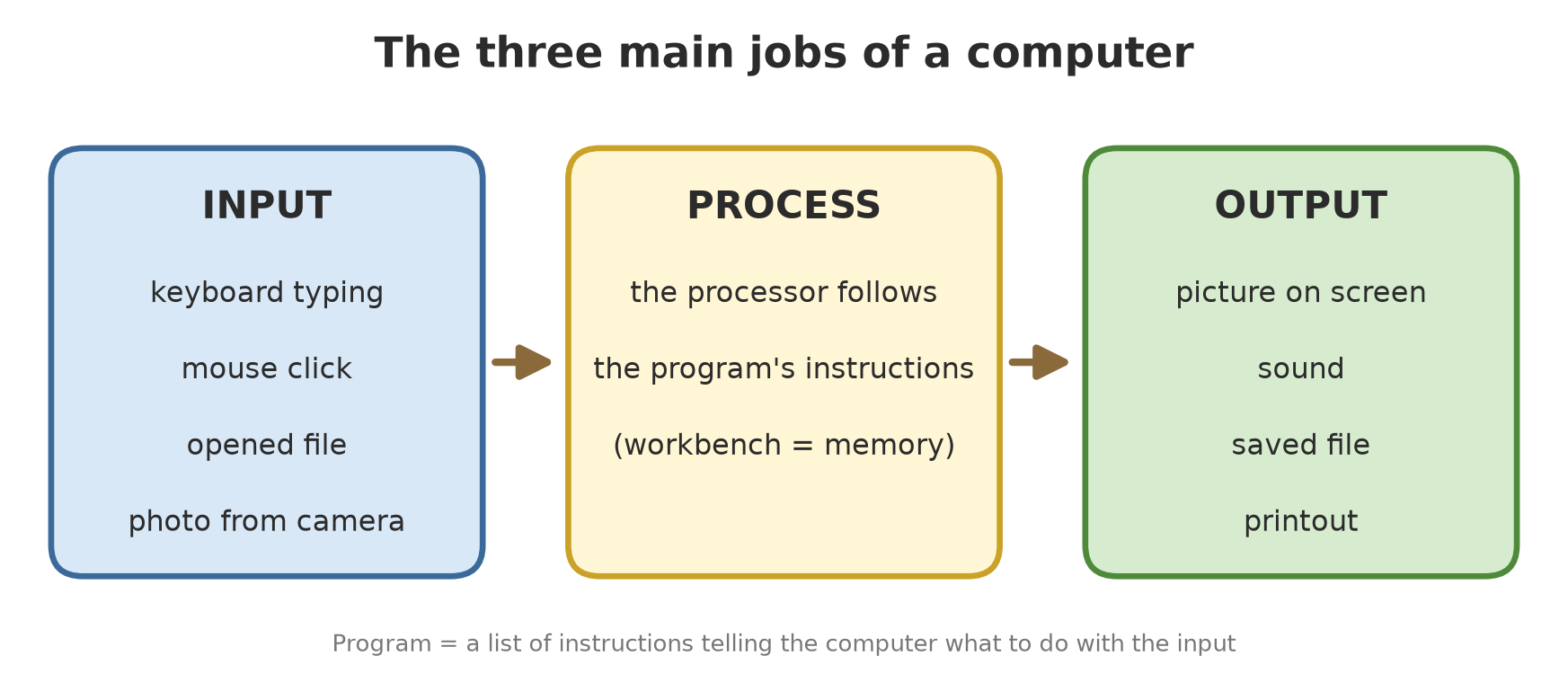
| Stage | Meaning | Example from the field |
|---|---|---|
| Input | Data going into the computer | You type a tree diameter, 32.5 |
| Process | The computer works on that data | It calculates the trunk’s cross-section area |
| Output | The result the computer produces | The number appears on screen, or is saved to a file |
So when you learn Python later, you are really learning to write the middle part of this diagram: which instructions the computer should carry out on the input.
Meet the computer’s insides through a warehouse
You don’t need to be a technician. Just know these four parts:
| Part | Analogy | What it does |
|---|---|---|
| Processor (CPU) | The warehouse worker | Carries out instructions one by one, very fast |
| Memory (RAM) | The workbench | A temporary place for things being worked on right now. Quick to reach, but cleared when the computer is switched off |
| Storage (SSD/hard disk) | The filing cabinet | Keeps files permanently. Slower to reach, but contents last even without power |
| Screen, keyboard, mouse | Windows and doors | The way in (input) and the way out (output) |
Ever lost your typing because you forgot to press Save and the power went out? That’s because your work was still on the “workbench” (RAM) and had not been moved to the “filing cabinet” (storage). Save often.
What is a program?
A program is a list of instructions written neatly so a computer can do something. Think of a recipe: ingredients go in, steps are followed in order, a dish comes out.
Almost everything you use every day is a program: your web browser, the calculator, your messaging app, even Windows itself. Without programs, a computer is just a warm, silent box.
A person who writes programs is called a programmer. And after reading this book, that will be you.
Files and folders: the computer’s drawer system
Because storage holds thousands of items, the computer organises them with two simple ideas:
- File = one named collection of data. It could be a photo, a document, a song, or (soon) your own Python program.
- Folder (directory) = a drawer that holds files and other folders. Since a folder may contain more folders, the result looks like nested drawers.
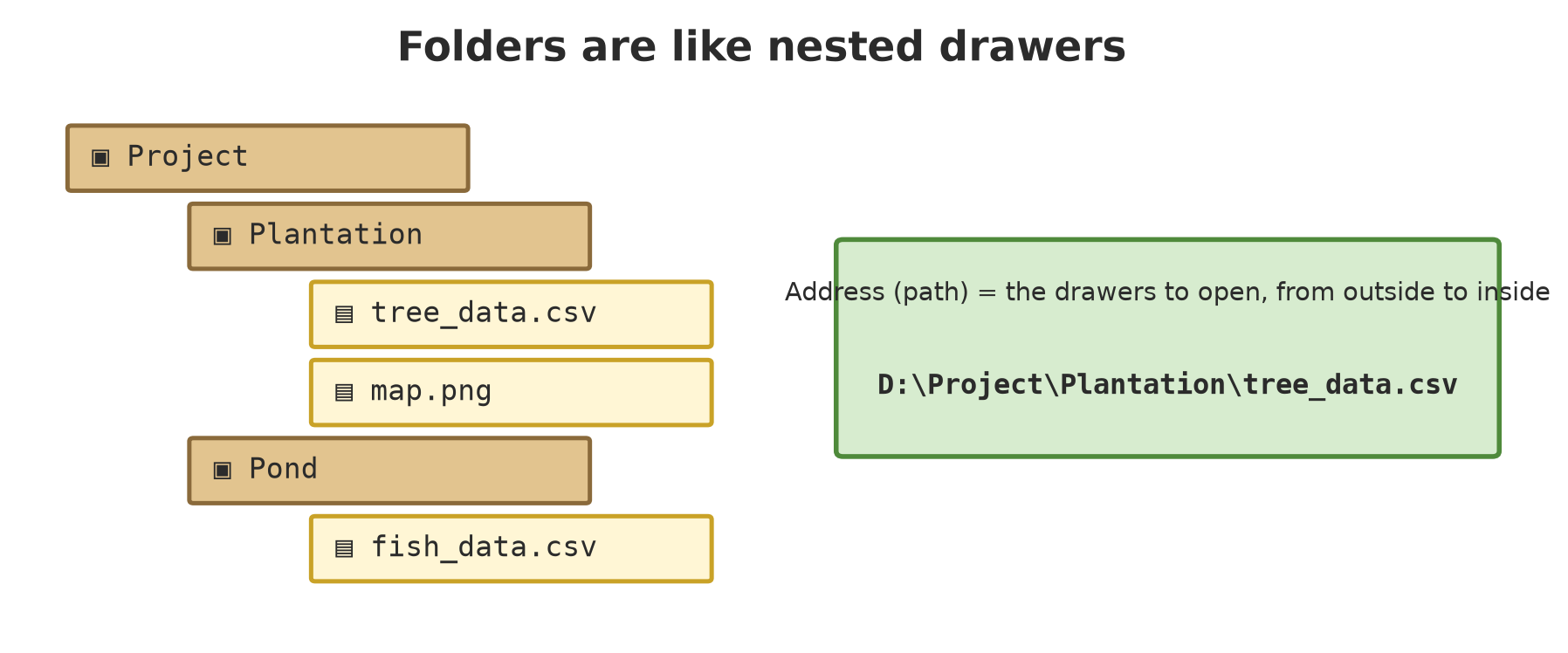
A file’s address (called a path) shows the way to a file, from the outermost “drawer” down to the file name. On Windows, for example:
D:\Project\Plantation\tree_data.csvRead it as: on drive D, open the folder Project, then the folder Plantation, then take the file tree_data.csv. The \ sign separates one drawer from the next.
The part after the last dot in a file name, such as .csv, .jpg, or .py, is the extension. It tells the computer what kind of file it is and which program should open it. Your Python files will end in .py.
Windows often hides extensions by default, so notes.txt looks like just notes. This traps beginners: you think you created hello.py, but its real name is hello.py.txt. In File Explorer, turn extensions on via View > Show > File name extensions. Exercise 3 below walks you through it.
At the deepest level, a computer knows only two states: current on or off, written as 1 and 0. Letters, photos, and songs are all eventually stored as very long strings of 1s and 0s. You do not need to memorise this; Python hides all of that detail from you.
Why Python?
Computers only understand numbers. People only understand human language. A translator is needed: a programming language. Python is one of the programming languages whose writing looks most like human language, so it suits beginners, yet it is powerful enough for data scientists. We start that story in Chapter 4.
Exercises
- Name three inputs and three outputs on your phone. (Hint: a touchscreen is input and output.)
- Open File Explorer and write down the full address (path) of your
Documentsfolder. (Hint: click the address bar at the top of the window.) - Challenge: turn on file name extensions, then find one
.jpgor.pngfile on your computer. What is the extension of your Word documents?
Chapter Summary
- A computer = an employee who is very fast, very careful, but has no common sense: it follows instructions exactly.
- All computer work breaks down into input → process → output.
- RAM = workbench (temporary), storage = filing cabinet (permanent). Save your work often.
- Program = a list of instructions. File = named data, folder = drawer, path = address to a file.
- Turn on extension display so file names don’t fool you.
Next, in Chapter 2: before writing instructions for this obedient employee, we practise writing clear instructions, starting with everyday jobs like feeding fish.